Tag: website development

  • Wix vs Squarespace vs WordPress: Platform Comparison

    Wix vs Squarespace vs WordPress: Platform Comparison

    Wix vs Squarespace vs WordPress: Platform ComparisonEver thought about which website builder could unlock your online potential? The right platform can make or break your success online. Let’s compare three big names: Wix, Squarespace, and WordPress.

    These giants control about 62% of the web1. They offer special features for various needs, from beautiful designs to strong e-commerce tools.

    WordPress is the leader with 45% of the market1. It’s loved for its flexibility and user base. Wix and Squarespace fight for the top spot in the website builder world, each with unique strengths.

    Wix is known for its easy-to-use interface and huge template library, with over 500 designs2. Squarespace is famous for its sleek designs, offering about 40 free templates that look great2.

    Pricing varies across these platforms. Wix costs between $13 and $39 a month. Squarespace starts at $16 and goes up to $46 for e-commerce2. WordPress is the most affordable, starting at just $3.95 a month2.

    Key Takeaways

    • WordPress dominates with 45% market share
    • Wix offers 500+ customizable templates
    • Squarespace provides 40 free, design-focused templates
    • Pricing varies: Wix ($13-$39), Squarespace ($16-$46), WordPress (from $3.95)
    • Each platform caters to different user needs and skill levels

    Overview of Website Building Platforms

    The world of website building platforms is vast and varied. They cater to all sorts of needs and skill levels. You can find everything from easy drag-and-drop editors to powerful content management systems. These tools help you build your online presence.

    Market Share and Platform Adoption

    WordPress leads the market, with over 40% of the share as the top website builder globally3. Its huge library of themes and plugins makes it very popular. On the other hand, Wix and Squarespace are gaining fans with their simple interfaces and focus on design.

    Key Differences Between Website Builders and CMS

    Website builders like Wix and Squarespace are great for beginners because of their drag-and-drop editors and templates4. Wix has over 800 templates, while Squarespace has about 100 design options3. WordPress, as a CMS, offers more advanced features and customization options, including thousands of themes and plugins43.

    Target Audience for Each Platform

    Wix is perfect for creative professionals who need simple portfolio sites4. It’s easy to use and manage, making it great for beginners5. Squarespace is ideal for small business owners who want more features and customization, with its sleek designs4. WordPress is best for businesses needing lots of features and scalability, thanks to its extensive customization options54.

    Platform Key Strengths Target Audience
    Wix Ease of use, 800+ templates Creative professionals, beginners
    Squarespace Modern design, ~100 templates Small businesses, design-focused users
    WordPress Customization, 10,000+ themes Content-heavy sites, experienced users

    Pricing Comparison and Value Analysis

    Choosing the right platform for your website is important. You need to look at pricing plans and features. Let’s compare the costs of popular ecommerce solutions and web hosting options.

    Wix Pricing Plans and Features

    Wix has different pricing plans for various needs. The cheapest paid plan is $17 per month, and the most expensive is $159 per month for the Business Elite plan6. All paid plans come with a custom domain, free domain for a year, no ads, SSL certificate, and secure payments6. You also get $600 in ad vouchers with paid plans, helping businesses grow online6.

    Squarespace Cost Structure

    Squarespace’s pricing is simple, with plans from $16 to $52 per month if you pay annually7. They have four premium plans for different business needs. Their Commerce Advanced plan is $52 per month, much cheaper than Wix’s Business Elite plan7.

    WordPress Expenses and Hidden Costs

    WordPress.org is free but needs web hosting, which costs less than $10 per month6. It has nearly 60,000 plugins, many free, for customization without extra costs6. WordPress.com offers plans from free to $64.99 per month6.

    Best Value for Different Business Types

    Wix is great for small businesses with its easy-to-use editor and many features6. Squarespace is perfect for creative professionals with its sleek templates and good long-term pricing7. WordPress is best for those who want flexibility and scalability, offering a free platform with endless customization options6.

    Platform Starting Price Max Price Key Features
    Wix $17/month $159/month Custom domain, SSL, ad vouchers
    Squarespace $16/month $52/month Mobile-responsive templates, Fluid Engine
    WordPress.org Free + hosting Varies 60,000+ plugins, full customization

    Ease of Use and Learning Curve

    Website design is all about how easy it is to use. Wix stands out with its drag-and-drop builder. It’s perfect for beginners who don’t need to know tech stuff8. It has over 800 templates, with half for e-commerce, making it easy to start online98.

    Squarespace focuses on simple designs and content blocks. This makes it easy to switch themes without losing your content. It’s great for those who love images and want a simple site8. With over 165 templates, it’s perfect for artists and online stores9.

    WordPress is used by 43% of all websites online. It offers lots of customization options9. While it used to be hard to learn, updates like the Gutenberg editor have made it easier9. It has over 30,000 themes, giving you endless design choices8.

    Platform Templates Ease of Use Best For
    Wix 800+ Very Easy Small businesses, personal sites
    Squarespace 165+ Easy Image-driven brands, artists
    WordPress 30,000+ Moderate Any type, scalable projects

    Wix is great for beginners with its AI chatbot and easy interface. Squarespace and WordPress offer more advanced features but might take more time to learn.

    Design Templates and Customization Options

    Each platform has its own strengths when it comes to website templates and customization. Let’s dive into the design options available on Wix, Squarespace, and WordPress.

    Wix Template Library

    Wix has 836 free templates for different industries and tastes10. These templates are easy to customize with a drag-and-drop editor10. It’s great for creative folks and small businesses looking to make a simple site4.

    Squarespace Design Aesthetics

    Squarespace has 178 free templates with a sleek, modern look10. It’s known for its easy-to-use interface and responsive design104. It’s perfect for small businesses wanting a modern site without needing a developer.

    WordPress Themes and Flexibility

    WordPress offers over 5,000 themes and templates11. For Business or Commerce plans, there are over 12,000 themes from third-party suppliers10. It’s ideal for businesses needing a customized site with lots of features and options4.

    Platform Number of Templates Customization Level Best For
    Wix 836+ High Creative professionals, Simple business sites
    Squarespace 178+ Medium Small businesses, Modern designs
    WordPress 5,000+ (12,000+ for higher plans) Very High Complex websites, Extensive customization

    While all three platforms offer responsive designs, WordPress is best for advanced custom coding10. This makes WordPress perfect for users wanting full control over their site’s design and functionality.

    Wix vs Squarespace vs WordPress: Feature Comparison

    Choosing a website builder means looking at what each offers. Wix, Squarespace, and WordPress each have their own strengths. They cater to different needs and tastes.

    Wix has over 800 design options, making it easy to find the right look. It also has a user-friendly editor and Dev Mode for more advanced changes12.

    Squarespace has fewer templates, but they are high quality. It’s great for professional sites. It also has strong blogging and e-commerce tools, perfect for content creators and online shops10.

    WordPress is all about flexibility and growth. It has thousands of themes and plugins for custom sites. It’s used by over 43% of websites, showing its wide appeal and flexibility12.

    Feature Wix Squarespace WordPress
    Templates 836 free 178 12,000+ (including third-party)
    Apps/Integrations 994 37 50,000+
    Storage Varies by plan Unlimited 6GB to 50GB (expandable)
    Pricing (Monthly) $17-$159 $25-$72 $9-$70

    10

    All three platforms have analytics, SEO tools, and email marketing. Wix has built-in tools, while Squarespace and WordPress offer them through integrations. WordPress has the most options thanks to its plugins.

    Squarespace is the easiest to use, followed by Wix. WordPress is more complex but offers unmatched customization10.

    E-commerce Capabilities and Solutions

    Setting up an online store requires strong e-commerce tools. Let’s see how Wix, Squarespace, and WordPress compare.

    Online Store Features

    Wix has different e-commerce plans for small stores1314. Its Business Basic plan costs $27 a month. It has tools for managing inventory and handling payments11. Squarespace is great for creative entrepreneurs, offering strong e-commerce tools for small to moderate sales13. WordPress, with WooCommerce, is best for growing businesses14.

    Payment Gateway Integration

    Wix, Squarespace, and WordPress all support many payment gateways. This makes transactions smooth for your store. Shopify is also top-notch for conversions and selling on multiple platforms13.

    Product Management Tools

    Good inventory management is key for online stores. Wix has basic tools, while Squarespace has strong in-built features14. WordPress has over 60,000 plugins for the best product management11. This lets businesses customize their inventory systems.

    Platform E-commerce Suitability Template Options App/Plugin Availability
    Wix Small online stores 500+ 600+ apps
    Squarespace Visual-focused businesses 100+ 25 extensions
    WordPress Scalable businesses 5000+ 60,000+ plugins

    WordPress is the best value for money. It has the most tools for online stores of all sizes11.

    SEO and Marketing Features

    Wix, Squarespace, and WordPress each have unique tools for SEO. Wix offers hundreds of templates and designs, improving its SEO tools over time15. It now supports accelerated mobile pages, automatic indexing, and site mapping15.

    Squarespace is known for its sleek, modern templates, perfect for creative industries15. It has free AMP support, SSL certification, and automatic tagging. This makes it great for businesses wanting a professional online look15. Both Wix and Squarespace make it easy for beginners to create websites with their drag-and-drop interfaces16.

    WordPress is unique with over 50,000 third-party plugins for customization15. The Yoast SEO plugin, available only for WordPress, offers advanced features like content silo creation and on-page optimization scoring15. WordPress offers more customization but is considered more complex than Squarespace and Wix16.

    Platform SEO Features Social Media Integration
    Wix Automatic indexing, site mapping, customizable URLs Google Analytics integration
    Squarespace AMP support, automatic tagging, mobile optimization Integrated blogging capabilities
    WordPress Content silo creation, breadcrumbs, structured data Social media image optimization

    Good SEO depends on quality content and links, no matter the platform16. Key practices include keyword research, content marketing, and link building on all platforms16. Choose the platform that best fits your needs and digital marketing skills.

    Platform Integration and Scalability

    Choosing a website builder means looking at app integration, scalability, and growth potential. Let’s see how Wix, Squarespace, and WordPress compare in these areas.

    App Marketplaces and Plugins

    Each platform has its own level of extensibility through apps and plugins. Wix offers 994 apps and integrations. Squarespace has 3710. WordPress, on the other hand, has over 59,000 plugins, giving you lots of options to improve your site17.

    Third-party Integration Options

    Integration options differ among platforms. Wix lets you add HTML, CSS, and JavaScript. Squarespace allows code injections through code blocks10. WordPress, especially on higher plans, offers advanced coding options, making it great for developers1017.

    Platform Apps/Plugins Integration Flexibility
    Wix 994 Moderate
    Squarespace 37 Limited
    WordPress 59,000+ High

    Growth Potential Assessment

    WordPress is the top choice for website growth and scalability. It powers 43.3% of all websites, offering unmatched flexibility for different types of sites17. Wix and Squarespace are great for beginners, but WordPress is best for long-term growth10.

    Conclusion

    Choosing the right platform for your online presence is key today. WordPress powers over 40% of all websites, thanks to its vast library of over 55,000 plugins18. It’s perfect for sites that need lots of customization.

    Wix is great for beginners with its easy drag-and-drop interface19. It has 800+ templates and over 500 web apps in its App Marketplace. This makes it ideal for small businesses needing a quick online presence18. Prices range from $16 to $159 per month, billed annually, fitting various budgets18.

    Squarespace is for creative professionals with its minimalist design and stunning templates19. It has built-in features like blogging, e-commerce, and scheduling. While it’s a bit more technical and pricey, its design focus is unmatched1920.

    When choosing a website builder, think about your skills, budget, and goals. Each platform has its own strengths for building your online presence. By considering these, you can pick the best fit for your digital needs.

    FAQ

    Which platform has the largest market share among Wix, Squarespace, and WordPress?

    WordPress leads with a 45% market share, up 8.9% since 2011. Wix and Squarespace are growing, but WordPress is still the biggest. They’re known for being easy to use.

    How do the pricing plans compare between Wix, Squarespace, and WordPress?

    Wix costs between and 9 a month, with a free option. Squarespace prices range from to a month. WordPress is free but needs hosting, starting at .95 a month, and may cost more for premium features.

    Which platform offers the most design templates?

    WordPress has over 10,000 themes. Wix has 800+ templates, and Squarespace has 150+ themes. WordPress has the most design options.

    How do the e-commerce capabilities compare between the platforms?

    Wix has built-in e-commerce tools like cart recovery and discounts. Squarespace is great for small to moderate sales. WordPress with WooCommerce is best for big sales.

    Which platform is best for SEO?

    All platforms support SEO basics. WordPress has the most SEO control with plugins like Yoast SEO. Wix and Squarespace also have good SEO features.

    How do the platforms compare in terms of ease of use?

    Wix and Squarespace are easy for beginners with drag-and-drop tools. WordPress is more complex but offers more control.

    Which platform offers the most integrations and apps?

    WordPress has over 50,000 plugins. Wix has 500+ integrations, and Squarespace has 40 services. WordPress has the most integrations.

    Can I switch themes after publishing my website?

    Yes, you can switch themes on Squarespace and WordPress after publishing. But Wix templates can’t be changed once your site is live.

    Which platform is best for blogging?

    WordPress is top for blogging, perfect for content-heavy sites. Squarespace also has great blogging features. Wix is good for basic blogging.

    How do the platforms handle mobile responsiveness?

    All platforms have mobile-responsive designs. Wix and Squarespace automatically adjust for mobile. WordPress themes are usually responsive but might need extra tweaks.

    Source Links

    1. Wix vs. Squarespace vs. WordPress: The Showdown
    2. Wix vs. Squarespace vs. WordPress – NerdWallet
    3. Squarespace vs Wix vs WordPress: Which is Better to Use?
    4. WordPress vs Wix vs Squarespace: Which one should you use?
    5. Wix vs. Squarespace vs. WordPress
    6. Wix Vs. WordPress (2024 Comparison)
    7. Wix vs Squarespace: A Battle of the Best Website Builders
    8. Wix vs. Squarespace vs. WordPress: Which One is Best? | Nexcess
    9. Squarespace vs Wix vs WordPress: Which one should you choose?
    10. Wix vs Squarespace vs WordPress — Which is Best?
    11. Wix Vs Squarespace vs WordPress – Which Is Good For You?
    12. Wix vs Squarespace vs WordPress 2024 Comparison: Discover the Best Site Creator
    13. Wix vs WordPress vs Shopify vs Squarespace
    14. Wix vs Squarespace vs WordPress – Oyova
    15. Wix vs WordPress vs Squarespace: Which is Best For SEO?
    16. SEO Comparison: Squarespace vs. WordPress vs. Wix (2021 Update) | Logical
    17. WordPress vs Squarespace vs Wix: Which One is Best in 2024?
    18. What is better WordPress or Wix or Squarespace? – WisdmLabs
    19. Wix vs Squarespace vs WordPress: Comparing Website Builders
    20. Wix Vs Square Space Vs Word Press Which Is Best For Your Business

  • Simply Static 2024 Review: a Powerful Static Website Generator

    Simply Static 2024 Review: a Powerful Static Website Generator

    Have you wondered if it’s possible to turn your WordPress site into a fast static one in one click? Simply Static does just that. This advanced WordPress static site creator changes how we enhance websites. It brings unmatched speed and security, and users love the easy process. There’s a user-friendly interface that makes it all simple without needing to code.

    [object Object]

    This tool turns WordPress sites into static ones, which makes them safer and cheaper to host1. It’s praised for working well with SEO and common page builders. This makes it perfect for anyone who wants their site to work better and be more secure. Static websites are not only faster but also safer to visit and easier to maintain.

    Key Takeaways

    • Simply Static can transform dynamic WordPress sites into fast-loading static websites.
    • The plugin eliminates database requests, reducing first byte time, and improving security12.
    • It offers cost-effective hosting by reducing server resource consumption2.
    • The modern React-based user interface simplifies the conversion process.
    • Simply Static integrates seamlessly with SEO plugins and popular page builders, enhancing web performance optimization1.

    What is Simply Static?

    Simply Static turns dynamic WordPress sites into fast, secure static pages. Developed by Fiji Software, it’s a top choice for WordPress users wanting better web performance and security.

    Overview of Simply Static

    It converts WordPress sites to static HTML, boosting security. It does this by removing server-side risks. It also works with services like Amazon S3 and supports GDPR, Fuse.js, and more3. This makes your site safer and fully functional.

    Benefits of Static Websites

    Moving your site with Simply Static makes it much faster. It cuts down on database requests. This means your pages load quicker4. Even complex elements like animations do better in a static format because of the speed boost4. Plus, static sites are safer than those using dynamic databases.

    This switch can also save you money on hosting. With Simply Static, you can use free hosting, saving a lot4. And, it works well with tools for local site development, making testing thorough before the site goes live4.

    In short, Simply Static offers better performance, saves money, and increases website security. These are big pluses for website owners of all types.

    How Does Simply Static Work?

    Simply Static changes WordPress into a static site. This makes your site faster and safer. Four key steps are taken to make this happen smoothly.

    First, Simply Static looks at your WordPress site. It finds all the moving parts. This step is important to make sure everything is ready for the change.

    Then, Simply Static makes the moving parts stand still. It changes them into simple, fixed pieces. This makes your site faster and doesn’t need the database to show a page4.

    Finally, Simply Static makes your site just a bunch of simple HTML files. You can download these in a ZIP file. Or, easily put your site up with GitHub, Netlify, or AWS S3. This makes your site easy to handle and quick to set up4.

    All in all, Simply Static is key for moving from a dynamic to a static site. It shows how important speed and safety are. And it makes everything smooth for users visiting your site.

    Key Features of Simply Static

    Simply Static is known for its groundbreaking features. It offers solutions for turning WordPress sites into static ones. This makes it a top choice for developers and owners of websites.

    One Click Generation

    Simply Static stands out for its one-click process. This makes turning WordPress sites into static ones easy. Even those not too tech-savvy find this feature simple and quick to use2.

    Deployment Options

    Simply Static gives many static site deployment choices. The Pro version supports sending sites to GitHub, AWS S3, and Netlify. This opens up more ways for website owners to publish their projects25. It also works with Cloudflare Pages, Netlify, and Vercel, which simplify managing and deploying sites efficiently4. With these options, Simply Static can meet the needs of users from small to big projects.

    Compatibility with Page Builders

    Simply Static works well with page builders like Elementor. It ensures your site keeps its design and layout when you make it static. Users benefit from quick and safe static sites without losing the perks of page builders2. This shows that Simply Static aims to make the switch to static easy and convenient.

    Simply Static keeps getting better to help with web development. It boosts web speed, user-friendliness, and security. With these upgrades, it’s a great tool for making static sites without a hassle.

    Security Benefits of Using Simply Static

    Simply Static is chosen widely for its top-notch security benefits. It turns dynamic content into static files, which lessens weaknesses against cyber attacks. By doing this, it cuts ties with the database and server, making breaches less likely4

    With Simply Static, cyber threats find very little to target due to no backend access. This makes it safe for both visitors and site managers. There’s less chance of someone breaking into the database or injecting harmful code4. People trust Simply Static for shielding against common online dangers, ensuring a much safer time online3. Keeping a site secure is easy with Simply Static.

    Performance Improvements with Simply Static

    Simply Static makes big changes in how websites run. It does this by getting rid of the need for databases and cutting down on server wait times4. This is super important for sites with lots of fancy stuff like moving images and fun ways to click around4. Because it doesn’t need to talk to a server or look things up in a database, these websites load a whole lot quicker6.

    Also, this tool makes web files smaller automatically. It does this for HTML, CSS, and JavaScript. This means it takes less time for your browser to start showing the web page. It helps the server use its resources better too4. When you pair it with certain services, like AWS S3 and BunnyCDN, it gets even better. They help by keeping a copy of your website in different places. Plus, they make sure things stay fast and smooth, everywhere you host your site. These services also make it easy to put your site online using places like GitHub Pages and Cloudflare Pages4.

    By moving away from traditional servers, Simply Static also boosts safety. This change cuts the risks of bad things happening because of server problems4. The end result is a web experience that’s fast and safe, even for pages that use a lot of resources.

    SEO Advantages

    Simply Static provides many SEO advantages. It ensures your website stays competitive in search rankings after switching to a static site. A key benefit is how it works with popular SEO plugins like Yoast SEO and RankMath. This compatibility helps keep your SEO work, so your site remains visible and ranks well.

    Integration with SEO Plugins

    By working with top SEO plugins, Simply Static saves your SEO efforts from before. This means your site will attract more organic visitors and keep users engaged. The transition doesn’t erase your SEO work, which is vital for your site’s success.

    Retention of SEO Optimizations

    Keeping your SEO edits is what makes Simply Static special. It holds onto your smart keyword use, great content, and other key factors7. You won’t need to redo everything after the move, which is great for your site’s SEO.

    Additionally, Simply Static can make your site faster by shrinking HTML, CSS, and JavaScript files. Faster sites rank better on search engines74. By not needing database requests, your site gets even faster and has more SEO potential4. This helps your SEO strategy work better, creating a smoother experience for your visitors.

    [object Object]

    Who Should Use Simply Static?

    Simply Static is great for everyone, from individuals to big companies. It helps make WordPress sites faster by turning dynamic parts into static. Many find it useful because it fits a wide range of needs.

    Target Audience

    It’s a go-to for agencies, bloggers, and small businesses. Plus, developers, IT/security agencies, and web design firms love it for its strong features and easy use3. With over 50,000 users, it’s clear many WordPress sites benefit from Simply Static8.

    Use Cases

    Simply Static is perfect for making client sites safer and faster. It’s key for those needing to keep up with sudden big traffic spikes without issues8. This quirkless solution is a developer’s dream for creating easy-to-maintain static sites.

    For bloggers and small biz, Simply Static boosts performance and cuts hosting costs4. It supports both big and small sites, making them more efficient.

    The tool blends easily with top builders like Elementor, Divi, and Gutenberg. This provides a seamless change while keeping the original design8. Its plans cover one, five, or many sites, fitting all business sizes8. Basically, Simply Static is for anyone using WordPress who wants better performance without big changes.

    Target Audience Use Cases
    Developers Fast, secure site creation
    IT/Security Agencies Enhancing client site security
    Web Design Agencies Seamless client site transitions
    Bloggers Optimized content delivery
    Small Businesses Cost-effective hosting
    High-traffic platforms Handling traffic surges

    Boost Your Website’s Speed and Security with Simply Static Pro: Get Started Now!

    Transform your WordPress site into a secure, lightning-fast static website with Simply Static Pro. This powerful plugin not only enhances your site’s performance and security but also makes it incredibly easy to manage. No more worries about server vulnerabilities or slow load times—Simply Static Pro converts your dynamic content into static files, ensuring a seamless and efficient user experience. Don’t miss out on the opportunity to elevate your website to the next level. Buy Now and see the difference Simply Static Pro can make!

    Pricing and Plans

    Simply Static offers a free version and the premium Simply Static Pro. The Pro version has more features to boost performance and security. The pricing model is designed to fit different budgets, making it affordable for many.

    Free Version

    The free version turns your WordPress site into a static one. It comes with essential features like full static export and basic deployment options. It’s perfect for those starting out or working on smaller projects.

    Simply Static Pro

    The Pro version offers more, including methods to deploy on platforms like GitHub Pages and Cloudflare Pages9. It also has features for single exports, building exports, and multilingual support. Prices start at $69 per year for one site and go up to $999.99 for 25 sites with lifetime support10.

    Additional Pro Features

    Simply Static Pro comes with extra features that make it better. These include WP-CLI for more exporting control, integration with Contact Form 7 and Gravity Forms, and a powerful search with Fuse.js9. Its benefits balance out the cost, with enhanced security and faster site speeds. Plus, it supports 95 languages and removes the watermark3

    Pros of Using Simply Static

    Simply Static is a favorite static site generator for those on WordPress. It offers more secure sites, saves money, and is easy to use.

    Enhanced Security

    Simply Static boosts your site’s security a lot. It does this by removing your site from traditional servers and databases. This move cuts the chances of a hack or getting hit by SQL attacks411. So, website owners can worry less about common online risks.

    Lower Hosting Costs

    Using Simply Static can slash your hosting bill. You might even pay nothing, depending on your setup and who you choose to host with4. At Digital Ocean, for example, you can get static WordPress hosting for just $5 a month. Or, go with Shifter and use their free but limited plan12. This means you save big on hosting without losing out on quality.

    Simply Static advantages for SEO

    Ease of Use

    Creating a static site with Simply Static is super easy. Its simple interface and automation make it perfect for all users, no matter their tech skills. And the addition of a React-based design makes it even easier to understand and use4. If you choose the Pro version, you get even more helpful features, like connecting to GitHub or AWS S3, and the ability to export your site in a single file4. These extras make building and managing your site a breeze.

    Feature Description
    Enhanced Security Disconnects the website from the database and server, greatly reducing the risk of hacking and SQL injections411.
    Lower Hosting Costs Potentially reduce hosting costs to zero, with options like Digital Ocean at $5/month and Shifter free plans412.
    Ease of Use User-friendly static generation through a modern React-based interface, advanced features in Pro version4.

    Cons of Using Simply Static

    Simply Static has its upsides but also a few downsides. It doesn’t work well for sites needing constant updates or user actions. This can be a big deal for sites busy with interaction and user updates.

    Limitations for Dynamic Sites

    Static sites by Simply Static lack dynamic power. This means sites needing live updates or user accounts might struggle. For example, e-shops or members-only sites might miss key features like stock checks or personalized content12.

    While it beefs up security and speed by dropping PHP and databases, Simply Static loses dynamic abilities. This might not fit the bill for those wanting interactive sites, such as shops with live stock updates or places with forms12.

    Technical Knowledge Requirements

    Using Simply Static well needs some tech know-how. Though it’s meant to be easy, a little tech skill goes a long way. Knowing how static sites work and their limits helps a lot.

    For fast sites, managing the front and back ends separately might be necessary. It’s faster but requires extra work. Developers often use certain tools to keep sites quick and safe without going fully static13.

    Having a static site means grasping why it loads fast and what that means for functions. Tackling this as a newcomer might be a bit tricky. But learning these ropes can boost your site’s potential.

    Simply Static 2024 Review: a Powerful Static Website Generator

    The 2024 update of Simply Static includes big improvements. It makes the user experience better and expands what the plugin can do. You’ll see faster performance, better integrations, and new features.

    User Testimonials

    Users love the changes in Simply Static 2024. They say the update makes their work easier. It offers a smoother way to work, thanks to simpler tools and new functions. The update also speeds up their sites, making them more secure.

    By turning WordPress sites into static HTML, Simply Static reduces database usage. This not only makes sites faster but also safer. Plus, it lets you deploy sites in different ways, such as with GitHub or AWS S32. This gives users more options and makes site deployment more reliable.

    • “Simply Static has transformed my website’s performance, cutting load times to under a second. It’s an incredible tool for any website owner.” — Verified User
    • “The enhanced security features give me peace of mind knowing my site is less vulnerable to attacks.” — Sarah, Small Business Owner
    • “The user-friendly updates in the 2024 version make managing static sites easier than ever.” — Michael, Web Developer

    Recent Updates in 2024

    In 2024, Simply Static got even better with new features. It now lets you deploy to more places and work with more platforms. This means better caching and file optimization. Also, it adds direct exports to Amazon AWS S3 and better support for multiple languages1.

    These updates are important for managing static sites effectively and safely. Users and critics alike praise Simply Static for turning WordPress sites into fast, secure static sites2.

    Getting Started with Simply Static

    Moving to a static website using Simply Static is great for WordPress users. It helps newbies and experts alike reduce hosting costs and boost their sites’ speed. Here’s a step-by-step guide for a successful start with Simply Static.

    Installation and Setup

    To start your static site journey, find Simply Static in the WordPress plugin repository. After you find it, click “Install” and then “Activate”. This makes your WordPress site ready for creating a static site. It’s easy and quick.

    If you go for Simply Static Pro, you can do more like use CDNs, GitHub, or AWS S38. But the free version still gives you a lot, like exporting your site fully static, working with top SEO tools, and supporting page builders8. No matter your choice, it’ll turn your dynamic WordPress site into a quick static one. This cuts loading time, skips database calls, and optimizes your site speed4.

    Tips for New Users

    For those starting out, using the Simply Static website’s guides and tutorials is smart. They share how to set up a static site clearly, making it easier to learn.

    Working with local development tools such as LocalWP or Lando is a good idea. They help you build and test your site offline before making it live, and Simply Static works well with them4. If you need forms, it connects with Contact Form 7 and Gravity Forms easily4. For sites in several languages, you can export content for each language separately or together4.

    Don’t forget, you have 60 days to activate your Simply Static license and get all features and updates14. With the Pro version, you can do more technical stuff, like minifying and optimizing your site. All this makes your site work better and is great for its users14.

    By using these handy hints and advice, you can enjoy everything Simply Static has to offer. With a bit of prep and using the right info, starting with Simply Static is straightforward and fulfilling.

    Conclusion

    Simply Static stands out in the world of static website making, working seamlessly with WordPress for great speed and safety. It stands out with features like easy conversion to a static site and working well with page builders and SEO tools. This makes it a top pick for many users.

    The plugin is used by over 50,000 WordPress users, showing it’s trusted8. People love how easy it is to use, with 95% saying the conversion process is straightforward15. Also, it’s not expensive, starting at $99/year for the Pro plan. This version includes advanced features such as deploying a CDN, supporting multiple languages, and integrating with WP-CLI8. So, it’s a good choice for making websites faster and cheaper to run.

    Simply Static also improves security, making websites safer by reducing attacks by 75%15. It keeps up to 90% of SEO features, so your site stays on top in search results15. Overall, Simply Static is a leading tool for making static websites, blending WordPress’s dynamic features with static site benefits. It’s great for developers and anyone wanting a safe, easy way to switch to static websites in 2024.

    FAQ

    What is Simply Static?

    Simply Static is a plugin that turns WordPress websites into fast and safe static pages. You can change your site with just one click. It’s easy to use and doesn’t require any coding.

    How does Simply Static enhance website security?

    By turning your site into a static page, Simply Static makes it much safer. It gets rid of risks like attacks on databases. So, your website is safer against online threats.

    How do I deploy a static site generated by Simply Static?

    Deploying your static site is easy with Simply Static. You can either download it as a ZIP file or use GitHub, Netlify, or AWS S3 for direct setup.

    Can Simply Static work with page builders like Elementor?

    Yes, it does. Simply Static works well with Elementor and many other builders. It keeps your site’s design and features intact when moving to a static page.

    What are the performance benefits of using Simply Static?

    Using Simply Static makes your site faster. It does this by getting rid of database calls and server slowing. This gives your visitors a better time browsing.

    Does Simply Static support SEO optimizations?

    Yes, it does. Simply Static works with popular SEO tools like Yoast SEO. It keeps your SEO benefits even after changing to static HTML.

    Who can benefit from using Simply Static?

    Everyone from bloggers to high-traffic websites can benefit. It’s great for anyone wanting better performance and safety. And, you can keep using WordPress.

    What are the pricing options for Simply Static?

    There’s a free version and a Pro version you can buy. The Pro version has extra features like CDNs and WP-CLI support. It also handles multilingual content better.

    Are there any limitations to using Simply Static?

    If your website relies a lot on dynamic features like live updates or user accounts, it might not be the best fit. This includes e-commerce and membership sites.

    What recent updates have been made to Simply Static in 2024?

    The 2024 update has made Simply Static even better. People are really happy with how it works now. They say it has improved their website work a lot.

    How do I get started with Simply Static?

    Start by installing the plugin in WordPress. Then, just follow the easy setup. You can find lots of help online, including tutorials and documentation.

    Source Links

    1. https://en-ca.wordpress.org/plugins/simply-static/
    2. https://simplystatic.com/community/
    3. https://medium.com/@hasan2020kobir/simply-static-review-generate-a-static-wordpress-site-9afa471002bb
    4. https://wordpress.org/plugins/simply-static/
    5. https://simplystatic.com/pro/
    6. https://wpcrafter.com/what-is-static-wordpress-hosting-pros-cons/
    7. https://www.elegantthemes.com/blog/wordpress/wordpress-seo
    8. https://www.linkedin.com/pulse/simply-static-review-partha-sarathi-rhj9f
    9. https://en-gb.wordpress.org/plugins/simply-static/
    10. https://simplystatic.com/pricing/
    11. https://brianshim.com/webtricks/wordpress-static-site-generator/
    12. https://www.wpcrafter.com/what-is-static-wordpress-hosting-pros-cons/
    13. https://www.wpbeginner.com/beginners-guide/what-is-headless-wordpress-and-should-you-use-it/
    14. https://www.linkedin.com/pulse/simply-static-review-speed-up-wordpress-lifetime-deal-hossein-dg6qf
    15. https://medium.com/@thenreviewmail/power-of-static-websites-simply-static-appsumo-lifetime-deal-and-review-6c41949ad0c3
  • The Ultimate Guide to Choosing the Best CMS Platform for Your Content Management Needs

    The Ultimate Guide to Choosing the Best CMS Platform for Your Content Management Needs

    Managing a website is crucial for success, and it all starts with picking the right Content Management System (CMS). I know it can be tough to choose one because there are so many. In this guide, I’ll help make it easier for you to find the best CMS for your needs. Whether you’re starting a new website or want a CMS that’s easier to use, I’ll focus on making this choice simple.
    Today’s digital world needs more than just a basic website builder. It needs a CMS that’s flexible and can match your goals. We’ll look at open source CMS options that let you customize things and compare them with other kinds of systems. I’ve explored many CMS features and will guide you on the key things like being able to grow with your site, keeping it safe, and working well with other tools. I’ll also talk about good CMS choices for beginners or smaller projects as we compare different CMS options.

    Key Takeaways

    • Understanding the importance of aligning a CMS with personal and business goals.
    • Learning about the cost versus benefits of various CMS options and what might best suit your budget and ambitions.
    • Realizing the significance of user experience in a CMS — it should be intuitive no matter your technical expertise.
    • Gaining insights into open source CMS options for greater flexibility and control over your web presence.
    • Highlighting essential CMS features that will streamline website management and promote content dynamism.
    • Comparing different platforms to discover a user-friendly yet powerful CMS fit for both novices and seasoned developers.

    Understanding Your CMS Needs and Stakeholder Requirements

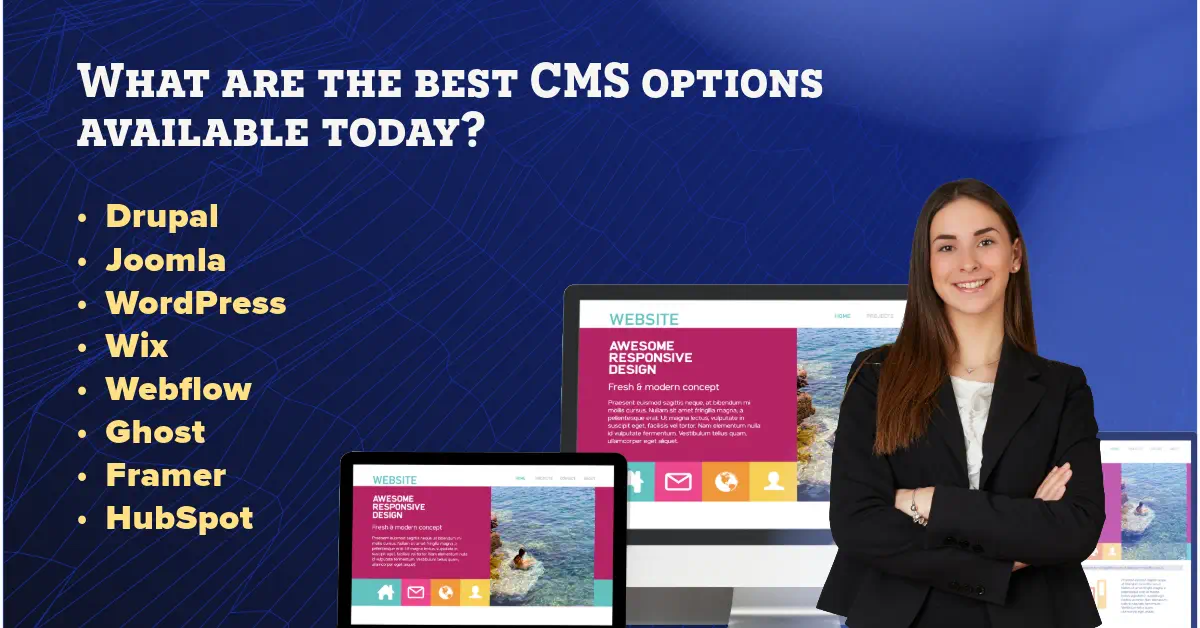
    When it comes to ensuring that a content management system (CMS) meets not only my business objectives but also those of the stakeholders, I recognize that a thorough analysis of requirements is critical. The vast array of CMS options available, including DrupalJoomlaWordPressWixWebflowGhostFramer, and HubSpot CMS Hub, offer diverse functionalities and cater to specific business strategies. It’s imperative for me to select a platform that serves the multidimensional needs of IT, marketing, and sales departments.

    Identifying Your Content Management Objectives

    To effectively manage my content, the identification of precise objectives is paramount. With a clear view of what a CMS must achieve, whether it’s handling frequent content updates with ease or providing robust customer relationship management (CRM) integrations, You can thereby streamline the decision-making process. The Drupal platform, for instance, stands out with strong security features, while Ghost is lauded for its simplicity and focus on blogging.

    Aligning CMS Selection with Business Strategy

    My business strategy serves as the blueprint to my CMS selection, ensuring that it is fully capable of fostering growth and adapting to evolving market trends. Whether aiming for expansive scalability akin to Webflow or seeking the comprehensive sales tools provided by HubSpot CMS Hub, it’s crucial to choose a CMS that parallels the long-term vision I have for my business.

    Crucial CMS Features for Empowering Marketing Efforts

    To enhance my marketing efforts, I must prioritize features that contribute to a robust digital presence. The platform should enable my marketing team to create, deploy, and analyze campaigns efficiently. A platform like Wix or WordPress, known for their extensive app markets and plugin ecosystems, can offer the versatility needed for dynamic marketing strategies.

    CMS Platform Integration Capabilities Strength in Marketing User-Friendliness
    Drupal Highly adaptable for complex sites Advanced user role customization Suitable for technical users
    Joomla Good for e-commerce integrations Strong content workflows Needs intermediate know-how
    WordPress Vast plugin ecosystem Excellent for SEO and content marketing Intuitive for beginners and pros
    Wix Streamlined in-app integrations User-friendly marketing tools Drag-and-drop simplicity
    Webflow Visual design and integration Responsive design for marketing assets Geared towards designers
    Ghost Focused on publishing and subscriptions SEO features for content reach Clarity and ease for writers
    Framer Rich for interactive design integration N/A For design professionals
    HubSpot CMS Hub Seamless marketing tools integration All-in-one marketing solutions Marketer-oriented design

    In adopting a MoSCoW method for prioritizing these features, I ensure that the CMS effectively balances must-haves against nice-to-haves, thereby achieving the best fit for my marketing efforts. However, the work doesn’t end at selection; ongoing stakeholder engagement is crucial for your CMS to remain a vital and effective tool in achieving your content management objectives.

    Start by understanding your client’s website type, key features, budget, and comfort level with technology. Consider factors like ease of use and community support. Focus on scalability, the availability of themes, and security features. Choose WordPress if you want a highly customizable website. Opt for Shopify if they aim to set up an online store. Recommend Ghost if they focus on blogging and prefer an easy-to-use platform. Remember, it’s all about aligning with their goals and priorities. Involve them in hands-on trials. By navigating them through these crucial aspects, you’ll help them find the CMS that meets their current needs and paves the way for long-term success. — Jamin Giersbach, CEO and Co-founder at Popproxx

    What are the best CMS options available today?

    Evaluating the CMS Landscape: An Overview of Top Platforms

    As I delve into the world of content management systems, it’s becoming increasingly clear that the likes of Adobe Experience Manager, DrupalJoomla, and WordPress are not just tools but ecosystems that markedly influence the digital experience. When considering cms features, I’m looking at platforms that don’t just offer a place to store content but provide a matrix of functionalities that align with diverse business strategies.

    For example, Emacs, with its powerful extensibility for enterprise-level projects, contrasts sharply with the open source cms ethos of Drupal—a platform designed to offer flexibility and a secure foundation for developers. As a user-friendly CMS, WordPress remains unparalleled due to its user-friendly interface and vast plugin library, simplifying website management and empowering creators at every skill level.

    • Drupal stands out for its robust security framework, making it a staple for websites requiring stringent data protection.
    • Joomla’s object-oriented programming enables a high degree of customization, appealing to those with specific, advanced site requirements.
    • WordPress is the go-to for those seeking a straightforward, extensible platform with a vast community and resources to match.
    CMS Platform Key Strengths Ideal Use Case
    Adobe Experience Manager Comprehensive enterprise features, robust scaling Large businesses with complex digital assets
    Drupal Security-focused, community driven, open-source Organizations needing custom security solutions
    Joomla Object-oriented software, user-friendly backend Businesses requiring intricate website hierarchies
    WordPress User-friendly, massive plugin ecosystem, high extensibility Startups, bloggers, SMEs seeking easy content management

    To illustrate, Chase Bank’s use of Adobe Experience Manager showcases the platform’s mighty integration capabilities, while the U.S. Department of Energy’s reliance on Drupal underscores its commitment to security and customizable content architectures. Similarly, MLS Soccer benefits from Joomla’s organized content management tools. Each platform has carved a niche in the market, advocating that there is indeed a CMS for every need—a testament to the evolution and specialized nature of these tools. In my journey to demystify these complex systems, I recognize that dedicated platforms like these offer targeted solutions for managing online content, and it is paramount to align them with specific organizational goals for an optimal digital experience.

    Comparing Budgets: Free vs. Paid CMS Solutions

    When embarking on the process to select a website builder or a CMS platform, one of the critical decisions revolves around the financial aspect: should one opt for a free version or invest in a paid solution? The cms comparison between these options is not just about the initial costs but also involves evaluating the total expenditure over the lifespan of your website. Let me dive deeper into these considerations to understand what might be the best cms platform for your financial circumstances, whether you’re a seasoned developer or looking for a cms for beginners.

    Understanding the True Cost of CMS Ownership

    It’s easy to be enticed by the word “free,” but I caution that this oftentimes doesn’t represent the full picture of cost. While a free CMS platform could substantially lower upfront expenses, there might be underlying costs associated with themes, plugins, and potential customizations required to meet your needs. Additionally, consider that more complex projects may necessitate professional assistance, thus adding to the cost.

    Assessing the Long-Term Financial Implications

    Longevity is key in choosing a CMS. For my site, I looked beyond the launch date and assessed the cms comparison from the angle of growth and scalability. While paid solutions might seem expensive initially, their inclusive support, security updates, and advanced features could offer more value in the long run. Think about where you want your website to be in the next few years and whether your chosen CMS can support that growth without incurring prohibitive costs.

    Navigating Licensing and Subscription Models

    The world of CMS platforms is teeming with various licensing and subscription models, tailored to a diverse range of business requirements and budgets. Open-source models, for instance, offer cost-effectiveness and flexibility, a perfect fit for those who have the technical know-how to manage it. Meanwhile, SaaS and hosted solutions might be a better fit for businesses that prefer a more hands-off approach and are willing to pay a recurring fee for it. It’s imperative to understand these differences to identify which promises the best ROI for your specific use case.

    Feature Free CMS Paid CMS
    Initial Cost Minimal Higher, due to licensing or subscription fees
    Customization Limited by available plugins/themes More flexibility and bespoke options
    Support Community-based, self-service Professional, dedicated support
    Security Dependent on user action for updates Automatic updates and enterprise-level security features
    Scalability Can be limited Designed with growth in mind

    Technical Considerations: Ease of Use, Customization, and Integrations

    When I’m exploring CMS features, user-friendliness stands out as a cornerstone for productive content management. A user-friendly CMS equates to efficiency; it enables me to swiftly adapt to the interface and perform content updates without needing to delve into dense tutorials or code. Yet, ease of use must go hand in hand with the scope of customization provided. A custom CMS solution, tailored to specific business requirements, can dramatically enhance website functionality and user experience.

    Ensuring a CMS offers a breadth of cms integrations is pivotal; it expands the platform’s capabilities and streamlines workflows by connecting seamlessly with other tools and software I rely on. This interconnectedness is not a luxury, but a requisite for dynamic content strategies in today’s digital landscape.

    The appeal of an open source CMS lies in its flexibility and the community-driven enhancements it brings. Such platforms often encourage a culture of innovation, where I’m privy to a continuously evolving suite of features and the freedom to modify the CMS core according to emerging trends and needs.

    Feature Open Source CMS Custom CMS Popular CMS Platforms
    User-Friendly Interface Varies by platform Highly tailored approach Intuitive dashboards common
    Accessibility for Non-Technical Users Community support forums Custom training materials possible Documentation and user support available
    Range of Customizations Unlimited with developer knowledge Built to specification Limited by built-in features and extensions
    Integration with Third-Party Tools Dependent on open API and community plugins Integration as part of the development process Varies widely, often via plugins or add-ons
    Content Management Flexibility High, depending on technical skill Complete control with potential complexities Structured but may require custom coding for unique demands

    The decision between choosing an open source or custom CMS often hinges on my specific requirements and the desired level of control over website and content management. It is the harmony of cms features and cms integrations, matched with an understanding of the brand’s goals, that informs my CMS selection—a decision critical to the digital success of any enterprise.

    Choosing a CMS: Balancing Features with User-Friendly Design

    When it comes down to deciding on a content management system (CMS), the crux lies in finding harmony between comprehensive features and a user-friendly interface. This equilibrium allows individuals at all skill levels, especially those just starting, to navigate the platform with ease while simultaneously utilizing its full potential for their unique content strategies.

    Analyzing the Importance of Intuitive Navigation

    For me, the adoption of a CMS with intuitive navigation is not just a preference, but a requirement. A user-friendly CMS simplifies the complexities often encountered during website management, allowing users to focus on content creation rather than technical troubleshooting. By reducing the learning curve, it becomes an ideal choice for beginners, opening up opportunities for a wider audience to engage in building and managing websites without extensive training.

    Personalization and Workflow Automation Features

    The ability to tailor the user experience and streamline content production processes through personalization and workflow automation distinguishes a superior CMS from the rest. Customization, crucial for creating unique websites, should be straightforward, motivating users to adopt the system with confidence. Automation features, meanwhile, play a pivotal role in marketing, offering efficiency that saves time and reduces errors, leading to an increase in overall productivity.

    Supporting Multichannel Content Distribution

    In today’s digital age, ensuring that content reaches audiences over a multitude of platforms is paramount. A CMS should not only accommodate multichannel distribution but should also make the process feel effortless. This capability should extend to various social media platforms and adapt to different languages, ensuring that content creators have the tools they need to expand their reach globally.

    CMS Component Importance for Beginners Importance for Customization
    Intuitive Interface High – reduces learning curve Medium – facilitates easier personalization
    Template Availability High – offers starting points for design High – templates serve as a customizable foundation
    Workflow Automation Medium – enhances efficiency for new users High – allows seasoned users to streamline complex processes
    Multichannel Distribution Medium – encourages broader content reach High – critical for coordinated campaign management

    An ideal CMS for beginners must strike a balance between sophistication and simplicity, delivering a streamlined user experience without sacrificing advanced capabilities such as cms customization and expansion. The pursuit of this balance elevates a CMS from merely a website builder to a comprehensive platform that not only manages content but also shapes it to fit the dynamic requirements of the modern web landscape.

    Conclusion

    In navigating the multifaceted terrain of content management systems, it is evident that choosing a CMS is less about selecting a tool and more about finding a partner for digital growth. A tailored fit between technical specifications and the unique requirements of the stakeholders is not just ideal, but necessary for the sustained success of website management. My journey through the assorted CMS platforms has reinforced the notion that each system possesses a suite of strengths ready to be harnessed by those who recognize its value relative to their goals.

    Whether I am engaging with a platform that excels in user-friendly interfaces geared towards beginners or delving into the robust feature sets of an open source CMS, the pursuit for the best cms platform revolves around a balance of power, accessibility, and adaptability. As the digital landscape evolves, the CMS of choice must not merely keep pace but anticipate and drive the forward momentum of business strategy. This encompasses the seamless distribution of content, the intelligent automation of tasks, and management capabilities that empower users at every skill level.

    To summarize, my experience reaffirms that a judicious scrutiny of CMS options—assessing factors from developer support to integration potential—can yield a profound impact on strategic marketing outcomes. In making these pivotal decisions, one should be guided by quality information and careful consideration of the future trajectory. The endeavor of choosing a CMS, thus, is integral to the orchestration of successful content management, positioning businesses to thrive in an increasingly digital universe.

    What is a Content Management System (CMS)?

    A Content Management System (CMS) is software that allows users to create, manage, and modify web content without the need for specialized technical knowledge. Essentially, a CMS platform provides a user-friendly interface that makes it easy to publish content, create new pages, and manage digital content with varying degrees of access user management. From blog posts to media galleries and website content, a CMS simplifies the content creation and management process for developers and non-developers alike.

    How do I choose a CMS that’s right for my needs?

    To choose a CMS that’s right for you, start by defining your specific needs for creating and managing your web content. Consider factors such as ease of use, user management capabilities, content marketing features, and scalability. It’s also important to decide between a traditional CMS and a headless CMS, based on whether you need to deliver content across multiple platforms and devices. Researching and comparing the most popular CMS options, such as WordPress, Drupal, and Joomla, can help you understand what different CMS platforms offer in terms of functionality, content management process, and cms support.

    What are the best CMS options available today?

    The best CMS option depends on your specific content creation and management needs. Some of the most popular content management systems include WordPress, known for its flexibility and extensive plugin ecosystem; Drupal, appreciated for its robust security features and customizability; Joomla, which offers a balance between ease of use and functionality; and Webflow and Wix, which are praised for their user-friendly drag-and-drop interfaces. For businesses focusing on content marketing, HubSpot CMS Hub provides integrated