Category: Learn

  • Building Your First Website with WordPress and Elementor: Installing WordPress

    Building Your First Website with WordPress and Elementor: Installing WordPress

    Guide for installing WordPress via RunCloud and manually.

    Section 3: Installing WordPress (10 minutes)

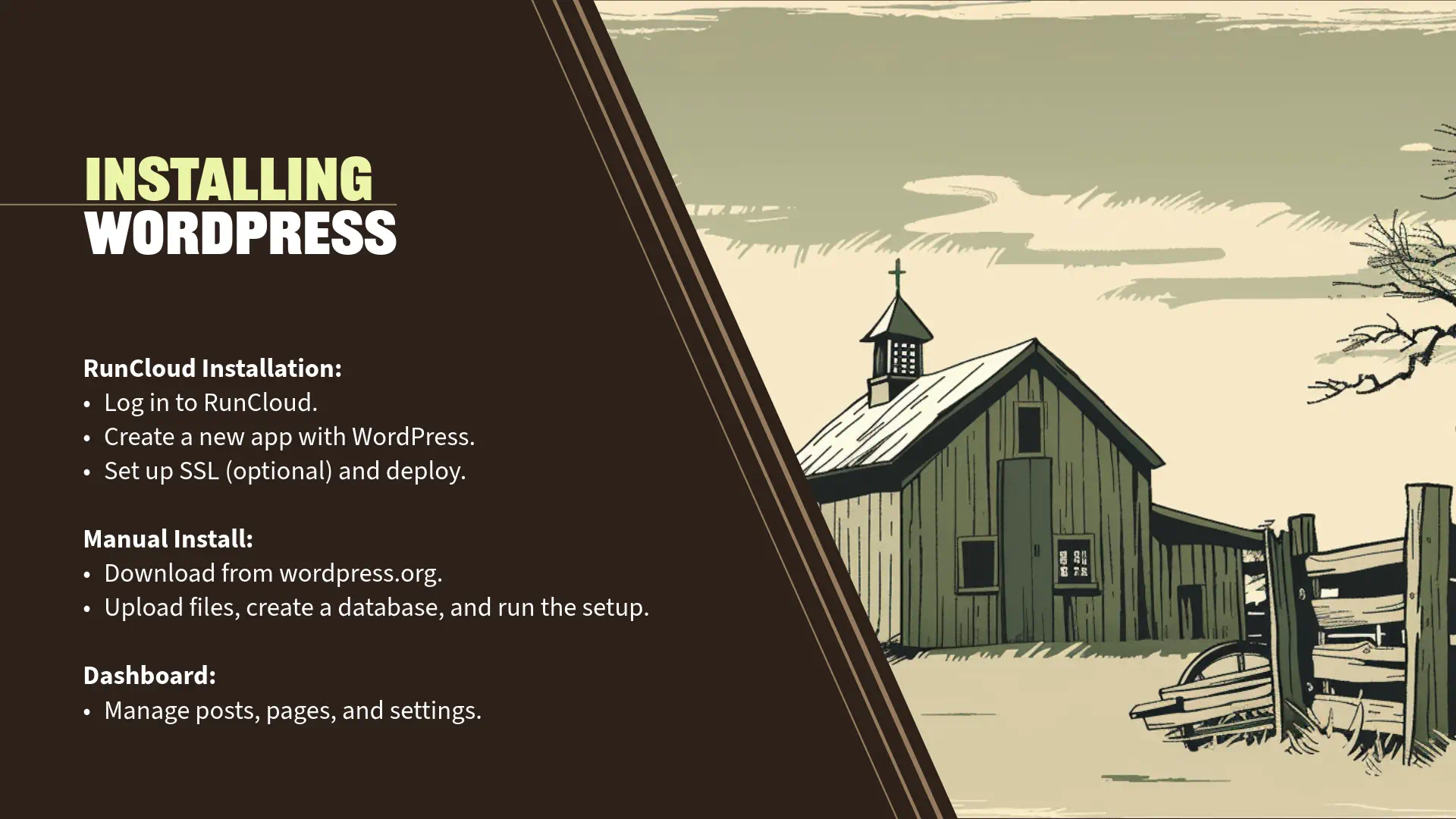
    One-Click Installation with RunCloud

    “Now that we’ve selected our domain and hosting, it’s time to install WordPress. Since I’m using RunCloud to manage our server for this demonstration, I’ll show you how to install WordPress using RunCloud’s interface.

    Demonstration: Installing WordPress with RunCloud

    Step 1: Log In to RunCloud Dashboard

    • Navigate to manage.runcloud.io and log in to your account.

    Step 2: Create a New Web Application

    • In the RunCloud dashboard, select your server from the list.
    • Click on ‘Web Applications’ in the left-hand menu.
    • Click the ‘Create Web Application’ button.

    Step 3: Configure Your Web Application

    • Domain Name: Enter your domain name, e.g., applegatepumpkins.com.
    • Web Application Name: This can be the same as your domain or any identifier you prefer.
    • Web Application Type: Select ‘WordPress’ from the dropdown menu. This will automate the WordPress installation process.
    • System User: Use the default user or create a new one if you prefer.

    Step 4: Install WordPress

    • Review your settings and click ‘Add Web Application’.
    • RunCloud will now set up the web application and install WordPress automatically.

    Step 5: Advanced Options

    • Enable SSL Certificate: You can set up an SSL certificate now or later. For this demonstration, we’ll use the default options.

    Step 6: Site Information

    • Site Title: Enter Applegate Pumpkins.
    • Username: Create an admin username (avoid using ‘admin’ for security reasons).
    • Password: Generate a strong password.
    • Your Email: Enter your email address.
    • Click ‘Deploy applegatepumpkins’.

    Step 7: Access Your WordPress Site

    • Once the installation is complete, you can access your site by navigating to applegatepumpkins.com in your web browser.
    • This is the default WordPress theme Twenty Twenty-Four. Yay! It looks like everything is working.

    Manual Installation (Simplified Overview)

    “While we used RunCloud’s automated process to install WordPress, it’s helpful to understand the basic steps involved in a manual installation, even if we won’t go into much detail.

    Simplified Steps for Manual Installation:

    1. Download WordPress:
      • Go to wordpress.org and download the latest version of WordPress.
    2. Upload Files to Server:
      • Use the webhosts File Manager or an FTP client to upload the WordPress files to your web application’s root directory.
    3. Create a Database:
      • Click on ‘Database’ and create a new database.
      • Note down the database name, username, and password.
    4. Configure wp-config.php:
      • Rename wp-config-sample.php to wp-config.php.
      • Edit the file to include your database details.
      • Save the changes.
    5. Run the WordPress Installation Script:
      • Navigate to yourdomain.com in your web browser.
      • Follow the on-screen instructions to complete the setup.

    Why Understand Manual Installation?

    • Awareness: Knowing these steps gives you a deeper understanding of how WordPress works.
    • Troubleshooting: It can help you diagnose issues that may arise during installation or updates.
    • Flexibility: Allows for custom configurations not available through automated installers.

    Exploring the WordPress Dashboard

    “With WordPress installed, let’s log in to the WordPress Dashboard and familiarize ourselves with its key sections.

    Accessing the Dashboard:

    • Go to Applegatepumpkins/wp-admin.
    • Enter your admin username and password.
    • Click ‘Log In’.

    Dashboard Overview:

    1. Dashboard Home:
      • At a Glance: Provides an overview of your site’s content and WordPress version.
      • Activity: Shows recent posts, comments, and other activities.
      • Quick Draft: Allows you to quickly write a new post draft.
    2. Posts:
      • All Posts: View, edit, or delete existing blog posts.
      • Add New: This is where you would create a new blog post.
      • Categories and Tags: Organize your posts for better navigation and SEO.
    3. Media:
      • Library: Manage your uploaded images, videos, and other media files.
      • Add New: Upload new media files.
    4. Pages:
      • All Pages: View, edit, or delete existing pages.
      • Add New: Create a new page (e.g., ‘About Us’, ‘Contact’).
    5. Comments:
      • Moderate comments left by visitors.
      • Approve, reply, edit, or mark comments as spam.
    6. Appearance:
      • Themes: Install, activate, or customize themes.
      • Customize: Access the Theme Customizer to adjust site identity, colors, menus, widgets, and more.
      • Widgets: Add content to sidebars, footers, or other widget-ready areas.
      • Menus: Create and manage navigation menus.
    7. Plugins:
      • Installed Plugins: View and manage installed plugins.
      • Add New: Install new plugins to extend your site’s functionality.
    8. Users:
      • All Users: Manage user accounts.
      • Add New: Create new users and assign roles (e.g., Administrator, Editor, Author).
      • Your Profile: Edit your personal profile settings.
    9. Tools:
      • Available Tools: Access tools like category and tag converters.
      • Import/Export: Import content from other platforms or export your site’s content.
    10. Settings:
      • General: Set site title, tagline, WordPress address, admin email, timezone.
      • Writing, Reading, Discussion: Configure post settings, homepage display, and comment settings.
      • Media: Define default image sizes.
      • Permalinks: Customize URL structures for posts and pages.

    Live Walkthrough:

    • Dashboard Home:
      • Highlight the ‘At a Glance’ section showing your site’s basic info.
      • Point out the ‘Site Health Status’ for important notifications.
    • Creating a New Post:
      • Navigate to Posts > Add New.
      • Briefly demonstrate the Gutenberg block editor interface.
    • Media Library:
      • Show how to upload images.
      • Discuss the importance of alt text for accessibility and SEO.
    • Customizing Appearance:
      • Go to Appearance > Themes.
      • Show the default themes and explain that we’ll be installing ‘Hello Elementor’ in the next section.

    Tips:

    • Help and Screen Options:
      • Point out the ‘Help’ and ‘Screen Options’ tabs at the top-right corner for additional guidance and customization.
    • User Roles:
      • Explain the different user roles and their permissions, which is important if others will contribute to your site.

    Engagement Opportunity:

    “Consider how you’ll use these features for your own website. For example, if you’re planning a blog, you’ll spend a lot of time in the Posts section. If you’re showcasing photography, the Media and Pages sections will be crucial.”

    Transition to Next Section:

    “Now that WordPress is installed using RunCloud and we’re comfortable navigating the dashboard, it’s time to configure some essential settings and choose a theme that will define our site’s look and feel. In the next section, we’ll set up our site information and install the ‘Hello Elementor’ theme to prepare for designing our pages with Elementor.”
  • Building Your First Website with WordPress and Elementor: Understanding Domains and Hosting

    Building Your First Website with WordPress and Elementor: Understanding Domains and Hosting

    Guide on domains and hosting explained.Section 2: Understanding Domains and Hosting (5 minutes)
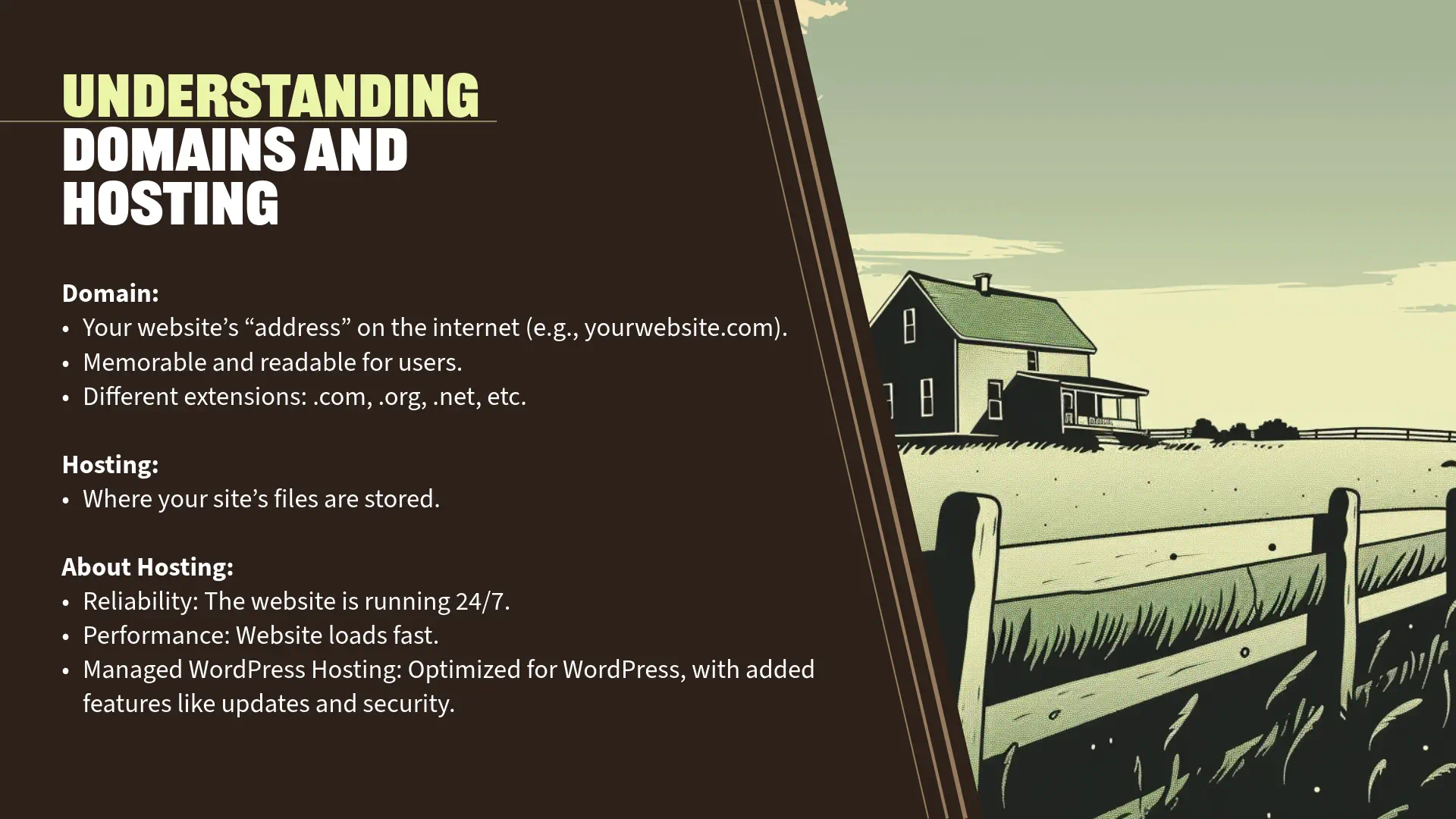
    What is a Domain?

    “Let’s begin with the concept of a domain name. Think of the domain as your website’s street address on the internet—it tells people where to find you.

    • Definition: A domain is the unique name that appears in a URL to identify a website. For example, in www.yourwebsite.com, ‘yourwebsite.com’ is the domain name.
    • Purpose: It serves as a memorable and readable way for users to access your website, rather than using an IP address, which is a string of numbers.
    • Extensions: Domains come with various extensions like .com, .org, .net, .io, and many more. Each can serve different purposes, but .com is the most widely recognized.”

    What is Hosting?

    Next, let’s talk about web hosting, the foundation that allows your website to be accessible on the internet.

    • Definition: Hosting is a service that stores all your website’s files, images, and content on a server connected to the internet. When someone types your domain name into their browser, the internet connects to the server hosting your site and delivers your web pages to them.
    • Types of Hosting Services:
      • Shared Hosting: Your website shares server resources with other sites—cost-effective but can be slower during high traffic.
      • Virtual Private Server (VPS): Offers dedicated portions of a server’s resources—better performance than shared hosting.
      • Dedicated Hosting: An entire server dedicated to your website—ideal for large websites with high traffic.
      • Managed WordPress Hosting: Specifically optimized for WordPress sites, often includes additional services like automatic updates and enhanced security.
    • Why Hosting Matters:
      • Performance: A reliable host ensures your website loads quickly, enhancing user experience.
      • Uptime: Refers to the time your website is online and accessible—look for hosts that guarantee at least 99.9% uptime.
      • Security: Good hosting providers offer security features like SSL certificates, malware scanning, and automatic backups.”

    Choosing a Domain and Hosting Provider

    “Selecting the right domain name and hosting provider is crucial for your website’s success. Here are some tips to guide you:

    Tips for Choosing a Domain Name:

    1. Keep It Simple and Memorable:
    2. Reflect Your Brand or Purpose:
      • The name should give visitors an idea of what your website is about.
      • If your site is about photography, a domain like www.lensview.com could be fitting.
    3. Choose the Right Extension:
      • .com is the most popular and easiest to remember.
      • Consider other extensions if the .com version is not available, but ensure it suits your site’s purpose.
    4. Avoid Numbers and Hyphens:
      • These can confuse users and are harder to convey verbally.

    Tips for Selecting a Hosting Provider:

    1. Reliability and Uptime:
      • Opt for providers with a proven track record of high uptime (99.9% or higher).
      • Read customer reviews to gauge reliability.
    2. Security Features:
      • Look for features like SSL certificates, firewalls, and regular malware scans.
      • Regular backups are essential in case you need to restore your site.
    3. Customer Support:
      • 24/7 customer support can be invaluable, especially when issues arise.
      • Support through multiple channels (live chat, email, phone) is a plus.
    4. Scalability:
      • Choose a host that can grow with you. As your website gains more traffic, you’ll need more resources.
    5. Performance Enhancements:
      • Providers that offer solid-state drives (SSDs) and caching can improve your site speed.
      • Integration with Content Delivery Networks (CDNs) like Cloudflare can further enhance performance.
    6. Pricing and Value for Money:
      • Compare what’s included in the price—sometimes paying a little more gets you significant benefits.
      • Be cautious of low initial prices that skyrocket upon renewal.

    Our Recommendations:

    • Elementor Hosting Basic Plan:
      • When you build your own website, I recommend starting with the Elementor Hosting Basic Plan.
      • Benefits:
        • All-in-One Solution: Includes hosting with WordPress pre-installed.
        • Optimized for Elementor: Ensures compatibility and smooth performance.
        • Beginner-Friendly: Simplifies the setup process, allowing you to focus on building your website without managing server configurations.
    • Cloudflare Integration:
      • We recommend integrating Cloudflare to enhance your website’s security and speed.
      • Features:
        • Content Delivery Network (CDN): Distributes your content across global servers, reducing load times for international visitors.
        • DDoS Protection: Protects your site from malicious attacks.
        • SSL/TLS Encryption: Encrypts data between your site and its visitors, building trust and improving SEO.

    Personal Insights:

    “For this presentation, I’m using Popproxx web hosting that’s built on RunCloud to self-host our demonstration website. This setup provides me with the flexibility and control needed for our session today.

    When choosing a domain name for the presentation, I wanted something that would resonate with all of you and be easy to remember. Since we’re in the Applegate Valley and it’s October—a time when pumpkins are everywhere—I decided to go with applegatepumpkins.com.

    Selecting applegatepumpkins.com serves a couple of purposes:

    • Local Connection: It reflects our beautiful Applegate Valley, making it relatable to our community.
    • Seasonal Relevance: October is synonymous with pumpkins, adding a timely and festive touch.

    This choice demonstrates how you can pick a domain that’s both meaningful and memorable for your audience. It ties in the local flavor and the season, making it more engaging for visitors.

    While I’m using a self-hosted solution with Popproxx and RunCloud for this demonstration, I recommend starting with the Elementor Hosting Basic Plan when you build your own website. It’s an all-in-one solution that’s beginner-friendly, includes hosting with WordPress pre-installed, and is optimized for use with Elementor. This makes it a great choice to get you up and running quickly without the need to manage your own hosting environment.”

    Engagement Opportunity:

    “Think about what you might name your own website. Is there something unique about your location, interests, or the time of year that you could incorporate into your domain name? While we won’t be registering domains today, it’s a great exercise to start considering your options and see how they can make your site more personal and engaging.”

    Transition to Next Section:

    “Now that we’ve discussed the essentials of domains and hosting and I’ve shared how I’m using applegatepumpkins.com for our demonstration, we’re ready to move on to setting up WordPress. In the next section, I’ll show you how to get WordPress up and running quickly. We’ll use my self-hosted setup for the demonstration, but remember that the Elementor Hosting Basic Plan can simplify this process when you’re building your own site.”

  • Building Your First Website with WordPress and Elementor: Welcome and Agenda

    Building Your First Website with WordPress and Elementor: Welcome and Agenda

    Creating Websites with WordPress and Elementor Guide.

    Section 1: Introduction (5 minutes)


    Welcome and Agenda

    Greet the Participants:

    “Hello everyone! Welcome to our class on ‘Building Your First Website with WordPress and Elementor.’ I’m Jamin Giersbach, and I’m excited to have you join me today. Over the next hour, I’ll be demonstrating how to build a website from scratch using WordPress and Elementor. Whether you’re aiming to start a personal blog, showcase your portfolio, or establish an online presence for your business, this session will provide you with the foundational knowledge to get started.”

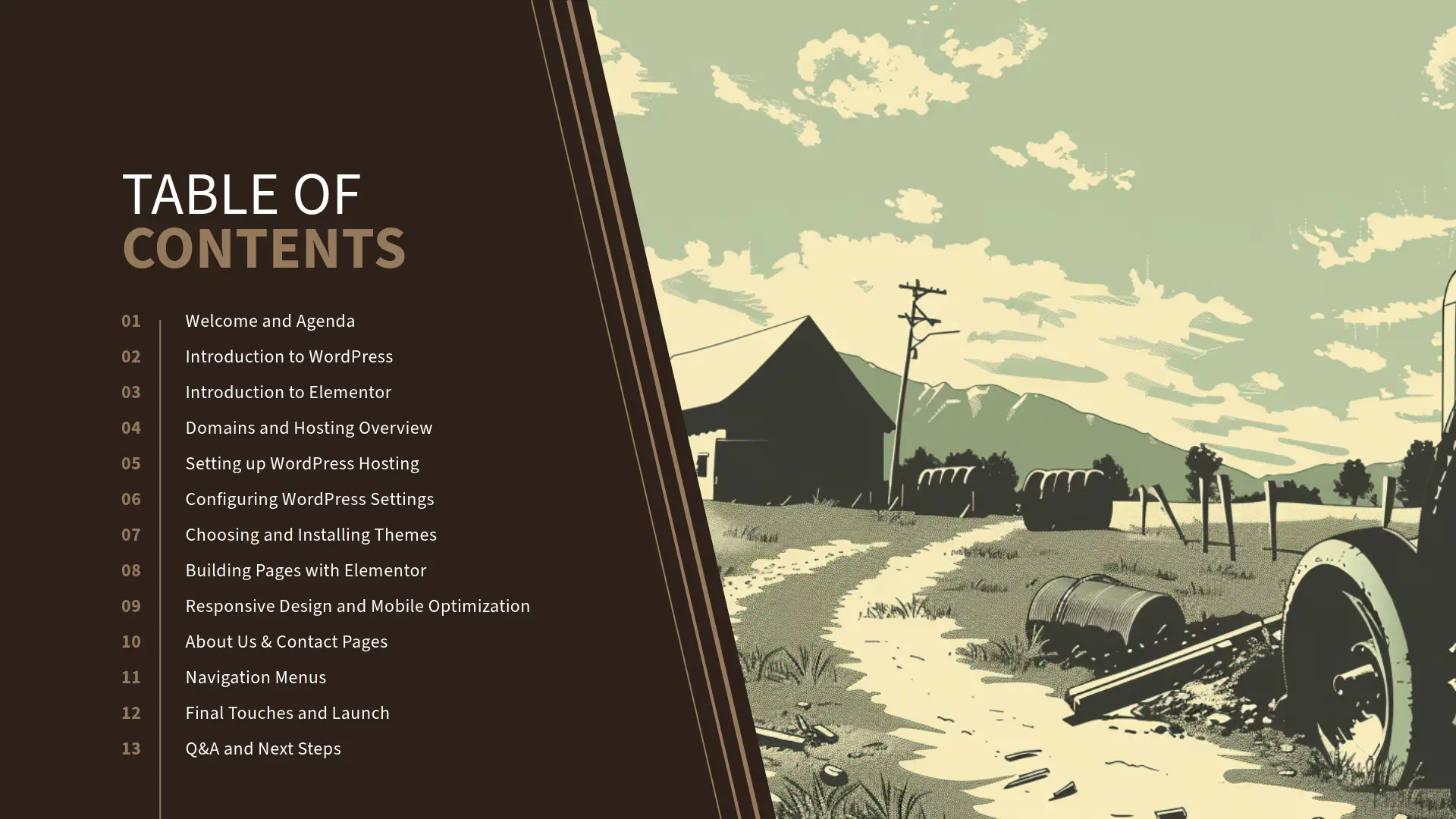
    Table of Contents for WordPress tutorialOutline What Will Be Covered:

    “Here’s what we’ll cover during this class:

    1. Introduction – We’ll begin with an overview of WordPress and Elementor.
    2. Understanding Domains and Hosting – Learn what they are and why they’re essential.
    3. Setting Up WordPress with Elementor Hosting – We’ll set up WordPress using the Elementor Hosting Basic Plan.
    4. Configuring Your WordPress Site – I’ll walk you through the key settings.
    5. Choosing and Installing a Theme – We’ll install the ‘Hello Elementor’ theme.
    6. Building Pages with Elementor – Watch as I create a homepage and additional pages using Elementor.
    7. Setting Up Navigation Menus – See how to create menus for easy site navigation.
    8. Final Touches and Launching Your Site – We’ll prepare the site for launch.
    9. Q&A and Next Steps – I’ll answer any questions you have and provide resources for further learning.

    By the end of this class, you’ll have seen the complete process of building a website using WordPress and Elementor, equipping you with the knowledge to start creating your own site when you’re ready.


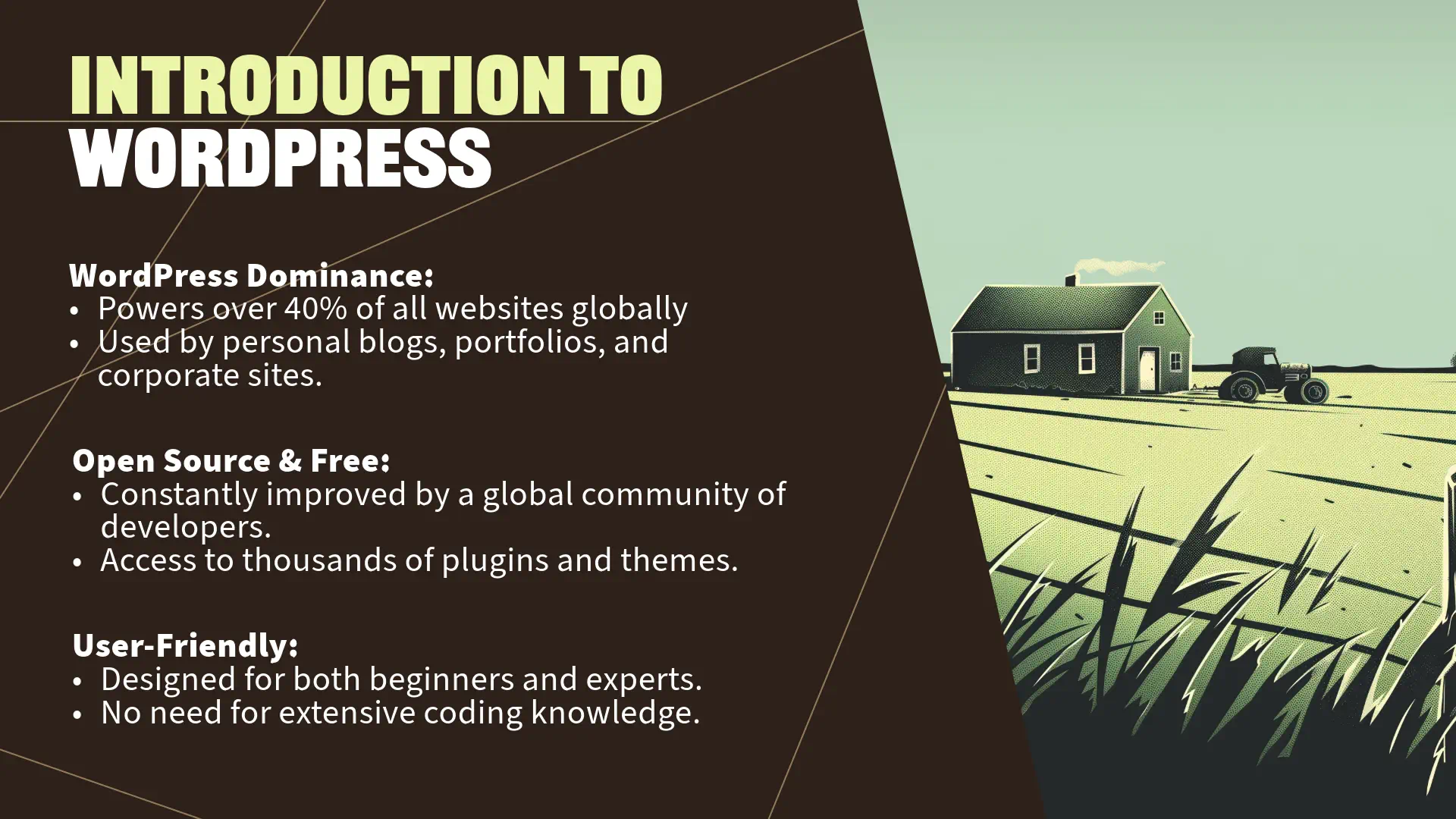
    Introduction to WordPress features overview.Facts about WordPress

    • Dominance in the Web World:

    “As of 2023, WordPress powers over 40% of all websites on the internet. That’s nearly half of the web! From personal blogs to major corporate sites, WordPress is the go-to platform for millions due to its flexibility and robust features.”

    • Open-Source and Free:

    “WordPress is an open-source Content Management System (CMS), which means it’s free to use and constantly improved by a global community of developers. This collaborative environment gives you access to thousands of plugins and themes to enhance your website’s functionality and appearance.”

    • User-Friendly:

    “Designed with both beginners and experts in mind, WordPress makes it easy to create and manage a website without needing extensive technical knowledge.”


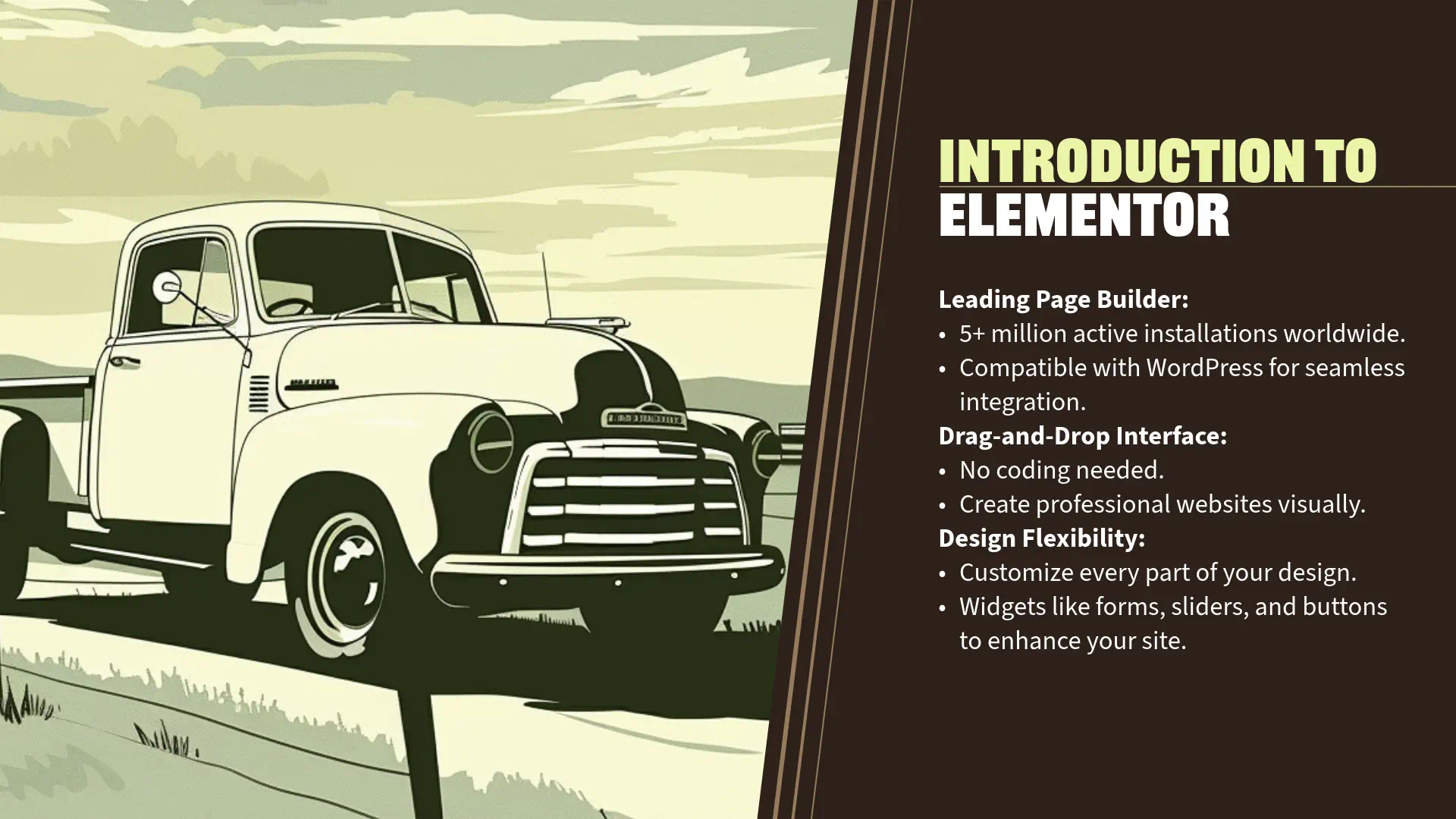
    Introduction to Elementor page builder features.Facts about Elementor

    • Leading Page Builder:

    “Elementor is a powerful WordPress page builder with over 5 million active installations. It allows you to design custom web pages using a drag-and-drop interface, so you don’t need to know how to code to create a professional-looking website.”

    • Design Flexibility:

    “With Elementor, you can achieve pixel-perfect designs with ease. It offers a wide range of widgets and templates that cater to various design needs, making the creation process both intuitive and enjoyable.”

    • Elementor Hosting Basic Plan:

    “In this class, we’ll use the Elementor Hosting Basic Plan, which provides an all-in-one solution for beginners. It includes WordPress hosting and access to Elementor’s essential features, making it a convenient choice to get your website up and running quickly.”


    Setting Expectations

    “Throughout this session, I’ll be building a website step-by-step, and you’ll be able to watch the entire process. This approach allows you to focus on understanding each part without the pressure of following along simultaneously. I encourage you to take notes and think of questions you’d like to ask during our Q&A segment at the end.”


    Personalization Opportunity

    “Before we dive in, I’d like to share a bit about why I’m passionate about website building. [Insert a personal anecdote or experience that inspired you to teach this class.]

    I believe that anyone can create a beautiful and functional website with the right tools and guidance. My goal today is to demystify the process and inspire you to start your own website journey.”


    Transition to Next Section

    “Now that we’ve covered the basics of what WordPress and Elementor are and why they’re so widely used, let’s move on to understanding the foundational elements of any website: domains and hosting. I’ll explain what these terms mean, why they’re important, and how to select reliable services to ensure your website performs well and stays secure.”