Author: jaming

  • Import Canadian Tax Rates WooCommerce Guide

    Import Canadian Tax Rates WooCommerce Guide

    Setting up tax rates for your WooCommerce store can be tricky, mainly with Canadian taxes. This guide will help you import Canadian tax rates into WooCommerce. We’ll cover GST, HST, and PST, as well as how to use a WooCommerce tax rates plugin and a Canadian GST/HST calculator.

    Canadian tax rates differ a lot by province. For example, Alberta has a 5% HST, while British Columbia’s rate is 12% (5% GST and 7% PST). Ontario charges a 13% HST, and Quebec’s total is 14.975% (5% TPS and 9.975% TVQ). E-commerce businesses need to get these rates right in WooCommerce.

    To make this easier, you can use a CSV file with the correct tax rates for each province. We’ll show you how to download and import this file into WooCommerce. This way, you follow Canadian tax laws and avoid any financial trouble.

    Key Takeaways

    • Canadian tax rates vary by province, ranging from 5% to 14.975%
    • Importing tax rates using a CSV file simplifies WooCommerce setup
    • Accurate tax calculation is crucial for e-commerce compliance
    • WooCommerce tax rates plugins can automate the process
    • Understanding GST, HST, and PST is essential for Canadian e-commerce
    • Tax rates should be based on the shipping destination

    To simplify setting up Canadian taxes in WooCommerce, we’ve created an easy-to-use tax import file that includes all the necessary provincial tax rates. Download the file using the link below and follow our step-by-step guide to import it into your WooCommerce store. This ensures your tax calculations are accurate and compliant across Canada. Download the Canadian Tax Import File

    Understanding Canadian Tax Structure for E-commerce

    Understanding Canadian taxes for e-commerce can be tricky. With different tax rates in each province, automating tax compliance is key. This guide will help you understand Canadian taxes for online sales.

    GST, HST, and PST Explained

    Canadian sales tax has three main types: Goods and Services Tax (GST), Harmonized Sales Tax (HST), and Provincial Sales Tax (PST). GST is a federal tax of 5%. HST combines federal and provincial taxes. PST rates change by province.

    Provincial Tax Rate Variations

    Tax rates vary by province, making automation crucial for e-commerce. Some provinces use HST, while others apply GST+PST. Alberta, Northwest Territories, Nunavut, and Yukon only charge 5% GST.

    Province Tax Type Rate
    Ontario HST 13%
    New Brunswick HST 15%
    Alberta GST 5%
    British Columbia GST + PST 12% (5% + 7%)

    Tax Collection Based on Shipping Destination

    E-commerce businesses must collect taxes based on the customer’s shipping address. For example, Ontario-based stores charge 13% HST for Ontario customers but only 5% GST for Alberta buyers. This system needs strong ecommerce sales tax automation to handle different tax rates.

    Remember: Canadian businesses must register for a GST/HST number and start charging sales tax once their sales exceed $30,000 CAD in a single calendar quarter.

    Import Canadian Tax Rates WooCommerce

    Setting up tax rates for cross-border taxation in WooCommerce can be complex, mainly when dealing with Canadian provinces. This guide makes it easier to import Canadian tax rates into your WooCommerce store. It ensures accurate digital goods taxation and smooth woocommerce tax integration.

    Downloading the CSV Tax Rate Template

    The first step is to get the CSV template. You can find it in your WooCommerce dashboard under Settings > Tax > Standard Rates. Download it to your computer for editing.

    Step-by-Step Import Process

    Here’s how to import Canadian tax rates:

    1. Sign into your WordPress admin panel
    2. Navigate to WooCommerce > Settings > Tax
    3. Click on “Standard Rates”
    4. Select “Import CSV”
    5. Upload your completed CSV file

    Make sure to include specific postal codes for certain regions. This ensures precise tax calculations based on shipping destinations.

    After you upload and import the Canadian tax CSV file, your WooCommerce tax settings will look like this. In this example, the business is located in California, where the business is shipping the products to Canada.
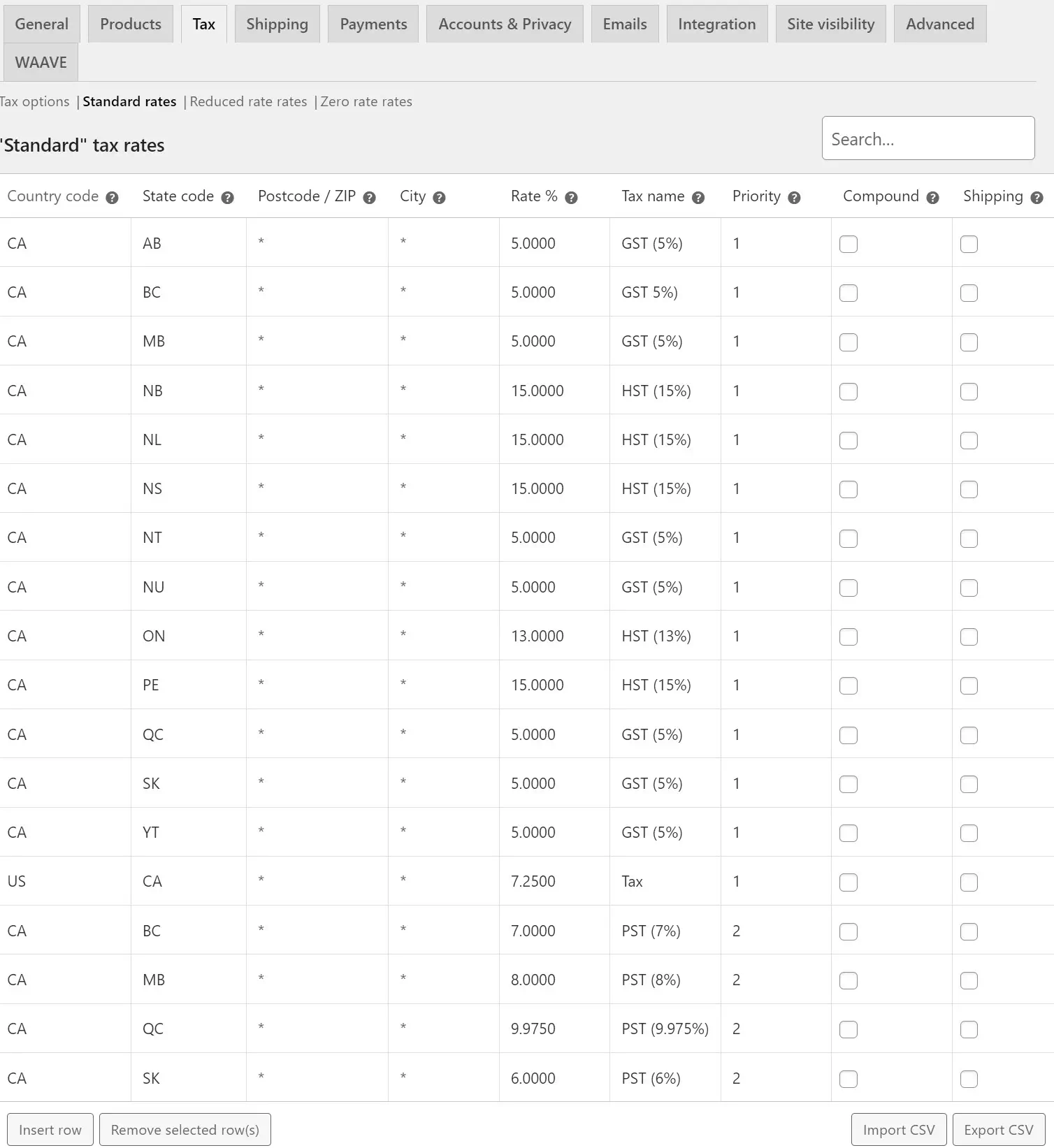
    Tax rates table for Canadian provinces and US states.

    Validating Imported Tax Rates

    After importing, it’s important to check the accuracy of your tax rates. Ensure each province has the correct rate applied. Here’s a quick reference table for some Canadian provinces:

    Province Tax Rate Breakdown
    Alberta 5% GST only
    British Columbia 12% 5% GST + 7% PST
    Ontario 13% HST
    Quebec 14.975% 5% TPS + 9.975% TVQ

    Following these steps and checking your rates will ensure accurate cross-border taxation for your WooCommerce store. This simplifies digital goods taxation across Canadian provinces.

    Configuring WooCommerce Tax Settings

    Setting up tax calculations in WooCommerce is key for managing taxes well. The platform has four tax settings pages. These let you tailor your tax setup for different situations.

    Enabling Tax Calculations

    To begin, go to Settings > General. Then, select “Enable Taxes and Tax Calculations.” This turns on WooCommerce’s tax features. It gets your store ready to handle taxes.

    Setting Up Tax Display Options

    WooCommerce lets you decide how prices are shown. You can choose to include or exclude tax. This meets different customer needs and legal rules.

    Managing Tax Classes and Rates

    WooCommerce has three default tax classes: Standard, Reduced, and Zero. You can set tax rates for each class. Use ISO 3166-1 alpha-2 codes to identify locations.

    Tax Class Example Rate Application
    Standard 20.0000% General products
    Reduced 5.0000% Specific goods
    Zero 0.0000% Tax-exempt items

    Price Display Configuration

    Set how prices look on your site. You can show prices with or without tax. You can also add suffixes to show tax inclusion. The WooCommerce tax rates plugin makes this easier, helping businesses in supported countries.

    Advanced Tax Management Solutions

    Managing taxes for your online store can be complex, with many jurisdictions to consider. Luckily, advanced solutions can make this easier. Automated tax compliance tools are key for ecommerce businesses looking to simplify their tax duties.

    Ecommerce sales tax automation brings big benefits to WooCommerce store owners. These tools can automatically figure out taxes based on where customers are. They also apply the right rates and update in real-time as tax laws change. This keeps your taxes accurate and up-to-date without manual updates.

    Let’s look at some important features of advanced tax management solutions:

    • Automatic tax calculations based on geolocation
    • Real-time updates to tax rates and rules
    • Support for multiple tax jurisdictions
    • Integration with popular ecommerce platforms
    • Detailed reporting for tax filing purposes

    For WooCommerce, options like Jetpack and WooCommerce Tax are popular. They work well with your store, offering automated tax services that are easy to turn on in your settings.

    Feature Manual Setup Automated Solution
    Tax Rate Updates Manual, time-consuming Automatic, real-time
    Accuracy Prone to human error High precision
    Time Investment High Low
    Compliance Risk Higher Lower

    Using these advanced tax management solutions lets you grow your business. You can focus on growth while keeping taxes in check across different places.

    Conclusion

    Learning how to import Canadian tax rates in WooCommerce is key for e-commerce success. This guide has shown you how to handle the complex Canadian tax system. This includes GST, HST, and PST.

    You can meet provincial rate requirements by following the steps and setting up tax settings right. This ensures you’re following the rules.

    Managing taxes in WooCommerce is more than just importing rates. You also need to understand how to display taxes, manage tax classes, and set up prices. These steps help create a smooth tax system based on where items are shipped.

    While you can do this manually, using advanced tax management tools can make it easier. These tools handle calculations and keep you up to date with tax law changes. Remember, good tax management builds trust with customers and avoids legal trouble.

    When you start using these strategies, think about getting advice from tax experts. They can give you advice that fits your business. With the right approach, tax compliance can be a way to stand out in the Canadian e-commerce world.

    FAQ

    How do I import Canadian tax rates into WooCommerce?

    To import Canadian tax rates into WooCommerce, first download the CSV template. You can find it in WooCommerce > Settings > Tax > Standard Rates. Fill the CSV with tax rates for each province.

    Then, import it by clicking “Import CSV” and uploading your file. WooCommerce will automatically update tax rates based on the provided information.

    What are the different types of Canadian taxes I need to consider for e-commerce?

    For e-commerce, you need to consider GST, HST, and PST. GST is a 5% federal tax. HST combines federal and provincial taxes.

    PST varies by province. Some provinces use HST, while others use a combination of GST and PST.

    How do I determine which tax rate to charge for different provinces?

    Tax rates vary by province. For example, Ontario charges 13% HST, while Alberta only charges 5% GST. You should charge tax based on the customer’s shipping destination.

    Use a current Canadian tax rate chart to apply the correct rates for each province.

    How can I enable tax calculations in WooCommerce?

    To enable tax calculations in WooCommerce, go to Settings > General. Select “Enable Taxes and Tax Calculations.” You can then configure tax display options, set up tax classes, and manage tax rates for different product types or regions.

    Are there automated solutions for managing Canadian taxes in WooCommerce?

    Yes, there are automated solutions like Jetpack and WooCommerce Tax. These extensions can automatically calculate taxes based on customer location and update according to legislative changes. Jetpack’s automatic tax calculation services can be enabled in WooCommerce > Settings > Taxes.

    WooCommerce Tax adds an “Automated taxes” setting to manage most tax calculations automatically.

    How often should I update my tax rates in WooCommerce?

    It’s important to regularly review and update your tax settings to maintain compliance with changing tax laws. While there’s no fixed schedule, it’s advisable to check for updates at least quarterly or whenever you become aware of tax rate changes in Canadian provinces.

    Can WooCommerce handle cross-border taxation for Canadian e-commerce businesses?

    Yes, WooCommerce can handle cross-border taxation. You can set up different tax rates based on the customer’s location, including international destinations. For complex cross-border scenarios, you might want to consider using specialized plugins or consulting with a tax professional.

    How do I handle digital goods taxation in WooCommerce for Canadian sales?

    You’ll need to set up a separate tax class in WooCommerce and apply the appropriate tax rates for digital goods. In Canada, digital goods are generally subject to GST/HST, but the rules can be complex. It’s advisable to consult with a tax professional to ensure compliance with the latest regulations for digital goods taxation.

    Source Links

  • AffiliateWP vs Solid Affiliate vs SliceWP Comparison

    AffiliateWP vs Solid Affiliate vs SliceWP Comparison

    “The best way to predict the future is to create it,” said Peter Drucker. This idea is very important in affiliate marketing plugins. Businesses want to grow, and WordPress affiliate management tools help a lot.

    In the world of affiliate tracking software, AffiliateWP, Solid Affiliate, and SliceWP are leaders. They each have special features to help with affiliate programs and increase sales. AffiliateWP is a big name, supporting over 30,000 affiliate programs1.

    SliceWP is great for small to medium-sized businesses just starting with affiliate marketing1. This shows that different businesses have different needs in affiliate management.

    Choosing the right plugin is important, and user satisfaction matters a lot. Solid Affiliate has a 4.5 Trustpilot rating from 23 reviews, and AffiliateWP has a 4.3 rating from 17 reviews2. SliceWP, without a Trustpilot score, has a perfect 5.0 rating on WordPress.org from 63 reviews2.

    We will look closer at these plugins’ features, prices, and value. Whether you’re experienced or new, knowing these tools is essential for a successful affiliate program.

    Key Takeaways:

    • AffiliateWP leads with over 30,000 businesses using its platform
    • SliceWP targets small to medium-sized businesses new to affiliate marketing
    • User ratings vary across platforms, with each plugin having strengths
    • Feature sets differ, catering to various business needs and sizes
    • Choosing the right plugin depends on specific business requirements and goals

    Understanding WordPress Affiliate Management Solutions

    WordPress affiliate management solutions help site owners manage referral programs easily. They make tracking affiliate links, managing commissions, and building partnerships simple.

    The Role of Affiliate Plugins in WordPress

    Affiliate plugins are key for managing commissions in WordPress. They track referrals, calculate commissions, and offer detailed reports. Plugins like AffiliateWP and SliceWP are great for businesses of all sizes3.

    Key Features of Modern Affiliate Systems

    Today’s affiliate systems have many advanced features:

    • Customizable commission structures
    • Real-time tracking of affiliate links
    • Detailed performance reports
    • Affiliate dashboards for easy management
    • Fraud prevention tools

    These features help both merchants and affiliates get the most from their programs.

    Integration Capabilities with eCommerce Platforms

    Working well with eCommerce platforms is important for affiliate management. Many WordPress plugins, like WP Affiliate Manager, work well with WooCommerce. WP Affiliate Manager has 25 add-ons, including 5 for WooCommerce4.

    Plugin Downloads Rating Starting Price
    AffiliateWP 23,000+ 4.6/5 $149.50/year
    SliceWP 2,000+ 5/5 $169/year
    Solid Affiliate N/A 4.5/5 $149/year

    Choosing the right affiliate management solution depends on your needs and budget. AffiliateWP is great for users of their other plugins. SliceWP is ideal for beginners. Solid Affiliate is known for its excellent support3.

    AffiliateWP vs Solid Affiliate vs SliceWP

    In this comparison, we’ll look at three top WordPress affiliate plugins: AffiliateWP, Solid Affiliate, and SliceWP. Each has special features to boost your site’s marketing power.

    AffiliateWP is trusted by over 30,000 businesses. It’s known for its advanced fraud tools and multi-tier commissions. It works well with popular e-commerce tools like Easy Digital Downloads, WooCommerce, and WP Simple Pay5. Its prices range from $150 to $300 a year, showing its strong features6.

    Solid Affiliate is easy to set up with its wizard and has a full affiliate portal. It’s unique because it offers a lifetime license without annual fees5. Prices range from $200 to $1,000 a year, meeting various business needs6.

    SliceWP has a free version and paid plans with all add-ons. It’s known for being easy to use and affordable, starting at $169 a year or $429 one-time6. It lets you set custom commission rates and offers one-click PayPal payouts. It also works with many WordPress eCommerce plugins7.

    Plugin Key Features Pricing
    AffiliateWP Fraud prevention, multi-tier commissions, e-commerce integrations $150 – $300/year
    Solid Affiliate Setup wizard, comprehensive affiliate portal, lifetime license option $200 – $1,000/year
    SliceWP Free version, customizable commissions, one-click PayPal payouts $169/year or $429 one-time

    Each plugin has its own strengths in managing affiliates. They cater to different business sizes and needs. Think about what you need before picking the right plugin for your WordPress affiliate program.

    Core Features Comparison

    When picking affiliate tracking software, it’s key to look at each option’s core features. We’ll compare AffiliateWP, Solid Affiliate, and SliceWP to guide you in choosing the best for your affiliate program.

    Affiliate Registration and Management

    All three plugins have strong features for managing affiliates. They make it easy to add new affiliates and keep an eye on them. This is vital for a healthy affiliate network and smooth operations.

    Commission Structure Options

    AffiliateWP is known for its flexible commission plans. It has global and per-product rates, custom tiers, and lifetime commissions. Solid Affiliate lets you set custom rates and override commissions for detailed control. SliceWP allows for customizable cookie durations, giving affiliates more chances to earn8.

    Tracking and Reporting Capabilities

    Good commission management tools are key for any affiliate program. AffiliateWP gives detailed reports and analytics for precise tracking. Solid Affiliate has advanced tracking and refund protection to protect profits. SliceWP offers real-time stats for affiliates, keeping them informed8.

    Payment Processing Systems

    Each plugin supports different payment options for timely and accurate payouts. Solid Affiliate, for example, has automatic PayPal payouts, making payments easier for everyone. This is especially helpful for WooCommerce users8.

    Feature AffiliateWP Solid Affiliate SliceWP
    Commission Flexibility High High Moderate
    Real-time Reporting Yes Yes Yes
    Automatic Payouts Available PayPal Integration Available
    Refund Protection Available Yes Available

    Choosing the right affiliate tracking software is vital for your program’s success. Affiliate marketing makes up 15% of digital ad revenue. Investing in good commission management tools is key to boosting your affiliate program’s success9.

    Pricing Models and Value Proposition

    When looking at affiliate marketing costs, WordPress plugin pricing is key. AffiliateWP, Solid Affiliate, and SliceWP have different pricing to fit various needs and budgets.

    AffiliateWP starts at $149 a year for small businesses. For more features, there are higher plans. Solid Affiliate offers all features for $49 a month, making it easy to choose without complicated pricing.

    SliceWP has a free version for testing. Paid plans start at $169 a year, offering great value for money. This pricing helps businesses of all sizes and budgets.

    Plugin Starting Price Key Value Proposition
    AffiliateWP $149/year Extensive features
    Solid Affiliate $49/month All-inclusive, easy to use
    SliceWP Free (Paid: $169/year) Affordability, scalability

    Each plugin has its own strengths. AffiliateWP has lots of features, Solid Affiliate is easy to use, and SliceWP is affordable with growth options. WordPress is used by over a third of global websites, making these plugins essential for many businesses10.

    When picking a WordPress plugin for affiliate marketing, think about your needs, budget, and future plans. The best choice depends on your business size, what features you need, and how you plan to grow.

    User Interface and Experience Analysis

    The design of affiliate management plugins is key to their success. A good affiliate dashboard makes work easier for both admins and affiliates.

    Admin Dashboard Functionality

    AffiliateWP has a detailed admin dashboard for managing affiliates. It shows real-time stats, makes adjusting commissions simple, and offers detailed reports. The design is easy to use, making it simple to find what you need6.

    Affiliate Portal Experience

    Solid Affiliate is known for its easy-to-use affiliate portal. Affiliates can quickly find promo links, coupons, and customize landing pages. The design works well on all devices11.

    SliceWP gives affiliates a dashboard with live stats. This helps keep affiliates motivated and lets them see how they’re doing. It also makes paying out via PayPal easy6.

    Customization Options

    Each plugin lets you customize the affiliate experience. AffiliateWP lets you change the affiliate area a lot, keeping your brand’s look consistent. Solid Affiliate and SliceWP also offer customization, but in different ways.

    Plugin Admin Dashboard Affiliate Portal Customization
    AffiliateWP Comprehensive Customizable Extensive
    Solid Affiliate User-friendly Feature-rich Moderate
    SliceWP Real-time stats Performance-focused Flexible

    User feedback shows how good these interfaces are. SliceWP gets a 4.9/5 rating on WordPress.org, showing users love its design and features12.

    Integration Capabilities

    Affiliate management plugins need strong e-commerce integrations and payment gateway support to work well. Let’s see how AffiliateWP, Solid Affiliate, and SliceWP do in these areas.

    eCommerce Platform Compatibility

    AffiliateWP is great because it works with many platforms. It easily connects with WooCommerce and Easy Digital Downloads. Solid Affiliate mainly works with WooCommerce, offering deep integration for quick setup and customization8. SliceWP also supports WooCommerce, providing key features for managing affiliate programs.

    Payment Gateway Support

    Good payment gateway support is key for smooth affiliate payouts. AffiliateWP supports many payment gateways, giving users flexibility. Solid Affiliate and SliceWP both offer PayPal for affiliate payouts, making sure affiliates get paid reliably.

    Third-party Tool Integration

    AffiliateWP is a leader in third-party integrations, thanks to its Zapier connection. Solid Affiliate integrates with WooCommerce subscriptions, which is great for businesses with ongoing revenue8. SliceWP, while focused, still has the integrations needed for good affiliate program management.

    Feature AffiliateWP Solid Affiliate SliceWP
    WooCommerce Integration Yes Yes (Deep) Yes
    Easy Digital Downloads Integration Yes No No
    PayPal Support Yes Yes Yes
    Zapier Integration Yes No No

    Each plugin has its own strengths in e-commerce integrations. AffiliateWP has the most integrations, Solid Affiliate is best for WooCommerce, and SliceWP is balanced for many WordPress businesses.

    Advanced Features and Add-ons

    Affiliate plugin add-ons and advanced features are key to improving WordPress affiliate management. AffiliateWP shines with its 33+ add-ons, helping users customize their affiliate programs13. These add-ons offer everything from fraud prevention to multi-tier commissions.

    SliceWP offers a unique solution with many advanced features in its main plugin. It includes customizable commission rates, real-time reporting, and easy PayPal integration for payouts7. This makes managing affiliates simple without needing extra add-ons.

    Both platforms have strong advanced features:

    • Affiliate coupon tracking
    • Lifetime commissions
    • Automated payouts
    • Custom affiliate dashboards
    • Social sharing tools

    AffiliateWP and SliceWP let users set up flexible commission structures. They can choose custom rates, product-based commissions, and bonuses for new sign-ups137. This customization helps businesses create programs that meet their goals and motivate their affiliates.

    Feature AffiliateWP SliceWP
    Add-ons 33+ available Built-in advanced features
    Commission Types Custom, product-based, lifetime Fixed, percentage-based, product-specific
    Payout Options Manual, PayPal, custom service One-click PayPal bulk payouts
    Reporting Detailed stats for affiliates and managers Real-time reports on visits, commissions, revenue

    Using these advanced features and add-ons, businesses can build complex affiliate programs. These programs can help grow and increase ROI. The choice between AffiliateWP’s modular approach and SliceWP’s all-in-one solution depends on what each business needs and prefers.

    Performance and Security Measures

    When picking an affiliate management solution, focus on performance and security. These plugins must protect data and keep your site running smoothly.

    Fraud Prevention Tools

    AffiliateWP is a leader in stopping affiliate fraud with its Fraud Prevention pro add-on. It blocks self-referrals and catches suspicious activity. This keeps your affiliate network clean. The plugin also tracks referrals smartly and blocks bad URLs14.

    System Performance Impact

    These plugins have strong features but aim to not slow down your site. AffiliateWP, with over 2,000 active installs, and SliceWP, with more than 5,000 active installs, handle big traffic well without slowing down15.

    Data Security Features

    Data security is crucial for affiliate management solutions. AffiliateWP’s Integrated Payouts Service makes secure payments to affiliates in 37 countries. Payments can be made from bank accounts or credit cards14. These plugins let site owners keep their affiliate data safe, boosting overall security.

    AffiliateWP, Solid Affiliate, and SliceWP all focus on security. But AffiliateWP stands out with its strong fraud protection and ability to remove affiliates who break rules14.

    Plugin Active Installs Pricing (Annual)
    AffiliateWP 2,000+ $134.55 (Personal)
    SliceWP 5,000+ $259 (Pro Plus, 10 sites)
    Solid Affiliate N/A $229 (One-time, single store)

    This comparison shows how these top affiliate management solutions balance performance, security, and value15.

    Support and Documentation Quality

    When picking an affiliate plugin, support and documentation quality matter a lot. AffiliateWP, Solid Affiliate, and SliceWP all have great resources to help users. They make it easier to use their platforms.

    AffiliateWP shines with its detailed documentation and top-notch support. Its Personal plan, at $149.50 a year, gives users access to these resources. This helps them solve problems fast16. Users rate AffiliateWP 4.3 out of 5 on Trustpilot, showing they’re happy with the support17.

    Solid Affiliate’s Personal plan, at $149.99 a year, also offers dedicated support and guides. Their help covers everything from setting up to advanced features like flexible commissions and automatic PayPal payouts16.

    SliceWP gives standard support and documentation to all users. But, premium support is available for higher plans. This lets users pick how much help they need.

    Plugin Documentation Support Type User Rating
    AffiliateWP Extensive Premium 4.3/5
    Solid Affiliate Comprehensive Dedicated N/A
    SliceWP Standard Tiered N/A

    The quality of support and documentation in affiliate plugins is key. It affects how well a program does. With the affiliate marketing market set to hit $39.8 billion by 2031, good support is crucial for growth17.

    Conclusion

    Choosing the right WordPress affiliate plugin is key to your affiliate program’s success. AffiliateWP, Solid Affiliate, and SliceWP each offer unique strengths. AffiliateWP stands out with advanced features like fraud prevention and real-time reporting for affiliate referrals18.

    Solid Affiliate makes creating an affiliate program easy and offers tiered commissions for top affiliates18. SliceWP is simple and affordable, perfect for small businesses or newcomers to affiliate marketing18. It also offers lifetime commissions, encouraging long-term customer loyalty19.

    The right choice depends on your needs, budget, and customization desires. Think about how well the plugin integrates with eCommerce platforms. Solid Affiliate integrates seamlessly with WooCommerce, eliminating the need for extra add-ons19. AffiliateWP ensures accurate tracking, even on servers with aggressive caching19.

    These features can greatly improve your affiliate program’s performance and management. Remember, the right plugin can significantly boost your affiliate marketing success. Studies show that using specialized plugins can lead to more sales and better tracking20.

    By carefully evaluating each plugin’s features and aligning them with your business goals, you can make a smart choice. This choice will help propel your affiliate program forward.

    FAQ

    What are the main differences between AffiliateWP, Solid Affiliate, and SliceWP?

    AffiliateWP has lots of features and works with many plugins. Solid Affiliate is easy to set up and has a great affiliate portal. SliceWP is affordable and has basic but solid features.

    AffiliateWP has advanced tools like fraud prevention and multi-tier commissions. Solid Affiliate has a setup wizard for quick start. SliceWP has a free version and paid plans with all add-ons.

    How do the pricing models compare among these three affiliate plugins?

    AffiliateWP starts at 9 per year for its personal version. Higher tiers add more features. Solid Affiliate starts at per month with all features included.

    SliceWP has a free version and paid plans start at 9 per year. Each plugin’s price reflects its unique features and value.

    Which plugin offers the best integration capabilities?

    AffiliateWP has the most integrations, including WooCommerce and Easy Digital Downloads. It also works with many membership and LMS plugins. Plus, it supports multiple payment gateways and has a Zapier integration.

    Solid Affiliate and SliceWP work well with WooCommerce and support PayPal. But they have fewer third-party integrations than AffiliateWP.

    How do these plugins handle fraud prevention?

    AffiliateWP has a Fraud Prevention pro add-on for blocking self-referrals and flagging suspicious activity. Solid Affiliate and SliceWP also have security measures against fraud.

    But the details of their fraud prevention tools differ. All three plugins focus on keeping data safe and reducing fraud.

    Can these plugins handle different commission structures?

    Yes, all three plugins offer flexible commission structures. AffiliateWP has global and per-product rates, custom tiers, and lifetime commissions.

    Solid Affiliate allows custom rates and commission overrides. SliceWP has customizable cookie durations and supports various commission models. The flexibility varies among plugins.

    How user-friendly are the affiliate portals in these plugins?

    Solid Affiliate is known for its excellent affiliate portal, with features like links, coupons, and landing pages. AffiliateWP has a customizable area with lots of features.

    SliceWP has a dashboard with real-time stats for affiliates. All three plugins let you customize the affiliate experience, but the options differ.

    What kind of support and documentation do these plugins offer?

    All three plugins have documentation and support resources. AffiliateWP has detailed documentation and premium support. Solid Affiliate offers dedicated support and guides.

    SliceWP has support and documentation, with premium support for higher plans. AffiliateWP is known for its comprehensive support.

    Do these plugins support multi-vendor or marketplace setups?

    AffiliateWP supports multi-vendor setups through integrations and advanced features. Solid Affiliate and SliceWP can also work in multi-vendor setups, especially with WooCommerce.

    But the native support for multi-vendor operations varies. It’s best to check each plugin’s specific capabilities for complex setups.

    How do these plugins handle affiliate coupon tracking?

    All three plugins support affiliate coupon tracking. AffiliateWP and Solid Affiliate have strong coupon tracking features, allowing affiliates to create and track custom codes.

    SliceWP also supports coupon tracking, but customization options may vary. This feature lets affiliates offer discounts while earning commissions.

    Can these plugins integrate with email marketing tools?

    AffiliateWP integrates with many email marketing tools, especially through Zapier. Solid Affiliate and SliceWP have limited direct integrations but can work with email marketing tools through shared integrations like WooCommerce.

    Check the specific email marketing integrations for each plugin based on your preferred solution.

    Source Links

    1. AffiliateWP vs. SliceWP: Which Is Better? (Compared)
    2. 8 Best WooCommerce Affiliate Plugins 2024
    3. 10 Best WordPress Affiliate Plugins to Boost Your Sales in 2024
    4. 7 Best Affiliate Plugins For WooCommerce
    5. The 10+ Best Affiliate WordPress Plugins
    6. Best WordPress Affiliate Plugins 🤑 Mega Comparison 2024
    7. SliceWP Showcase: Alternative to AffiliateWP & Solid Affiliate • SyncWin
    8. Best Automated Affiliate Marketing Software – Solid Affiliate
    9. 10 best affiliate plugins for wordpress
    10. Nexcess-Provided WordPress Plugins for Ecommerce and Sites | Nexcess
    11. The 10 Best WooCommerce Affiliate Plugins
    12. 10 best WooCommerce affiliate plugins to start an affiliate program
    13. AffiliateWP Review: Is It the Best WordPress Affiliate Plugin? (2023)
    14. AffiliateWP Review: An Ideal Blend of Flexibility and Control
    15. 7+ Best WordPress Plugins to Create Your Affiliate Program 
    16. Top 10 WordPress Plugins to Start an Affiliate Program – Monetize.info
    17. 11 Best WooCommerce Affiliate Plugins to Boost Sales (2024)
    18. 10 Best WooCommerce Affiliate Plugins To Increase Your Sales (2024) | RelyWP
    19. Best Affiliate Plugins for WordPress
    20. Best WordPress Plugins for Affiliate Marketing (Boost Your Earnings in 2024
  • Wix vs Squarespace vs WordPress: Platform Comparison

    Wix vs Squarespace vs WordPress: Platform Comparison

    Wix vs Squarespace vs WordPress: Platform ComparisonEver thought about which website builder could unlock your online potential? The right platform can make or break your success online. Let’s compare three big names: Wix, Squarespace, and WordPress.

    These giants control about 62% of the web1. They offer special features for various needs, from beautiful designs to strong e-commerce tools.

    WordPress is the leader with 45% of the market1. It’s loved for its flexibility and user base. Wix and Squarespace fight for the top spot in the website builder world, each with unique strengths.

    Wix is known for its easy-to-use interface and huge template library, with over 500 designs2. Squarespace is famous for its sleek designs, offering about 40 free templates that look great2.

    Pricing varies across these platforms. Wix costs between $13 and $39 a month. Squarespace starts at $16 and goes up to $46 for e-commerce2. WordPress is the most affordable, starting at just $3.95 a month2.

    Key Takeaways

    • WordPress dominates with 45% market share
    • Wix offers 500+ customizable templates
    • Squarespace provides 40 free, design-focused templates
    • Pricing varies: Wix ($13-$39), Squarespace ($16-$46), WordPress (from $3.95)
    • Each platform caters to different user needs and skill levels

    Overview of Website Building Platforms

    The world of website building platforms is vast and varied. They cater to all sorts of needs and skill levels. You can find everything from easy drag-and-drop editors to powerful content management systems. These tools help you build your online presence.

    Market Share and Platform Adoption

    WordPress leads the market, with over 40% of the share as the top website builder globally3. Its huge library of themes and plugins makes it very popular. On the other hand, Wix and Squarespace are gaining fans with their simple interfaces and focus on design.

    Key Differences Between Website Builders and CMS

    Website builders like Wix and Squarespace are great for beginners because of their drag-and-drop editors and templates4. Wix has over 800 templates, while Squarespace has about 100 design options3. WordPress, as a CMS, offers more advanced features and customization options, including thousands of themes and plugins43.

    Target Audience for Each Platform

    Wix is perfect for creative professionals who need simple portfolio sites4. It’s easy to use and manage, making it great for beginners5. Squarespace is ideal for small business owners who want more features and customization, with its sleek designs4. WordPress is best for businesses needing lots of features and scalability, thanks to its extensive customization options54.

    Platform Key Strengths Target Audience
    Wix Ease of use, 800+ templates Creative professionals, beginners
    Squarespace Modern design, ~100 templates Small businesses, design-focused users
    WordPress Customization, 10,000+ themes Content-heavy sites, experienced users

    Pricing Comparison and Value Analysis

    Choosing the right platform for your website is important. You need to look at pricing plans and features. Let’s compare the costs of popular ecommerce solutions and web hosting options.

    Wix Pricing Plans and Features

    Wix has different pricing plans for various needs. The cheapest paid plan is $17 per month, and the most expensive is $159 per month for the Business Elite plan6. All paid plans come with a custom domain, free domain for a year, no ads, SSL certificate, and secure payments6. You also get $600 in ad vouchers with paid plans, helping businesses grow online6.

    Squarespace Cost Structure

    Squarespace’s pricing is simple, with plans from $16 to $52 per month if you pay annually7. They have four premium plans for different business needs. Their Commerce Advanced plan is $52 per month, much cheaper than Wix’s Business Elite plan7.

    WordPress Expenses and Hidden Costs

    WordPress.org is free but needs web hosting, which costs less than $10 per month6. It has nearly 60,000 plugins, many free, for customization without extra costs6. WordPress.com offers plans from free to $64.99 per month6.

    Best Value for Different Business Types

    Wix is great for small businesses with its easy-to-use editor and many features6. Squarespace is perfect for creative professionals with its sleek templates and good long-term pricing7. WordPress is best for those who want flexibility and scalability, offering a free platform with endless customization options6.

    Platform Starting Price Max Price Key Features
    Wix $17/month $159/month Custom domain, SSL, ad vouchers
    Squarespace $16/month $52/month Mobile-responsive templates, Fluid Engine
    WordPress.org Free + hosting Varies 60,000+ plugins, full customization

    Ease of Use and Learning Curve

    Website design is all about how easy it is to use. Wix stands out with its drag-and-drop builder. It’s perfect for beginners who don’t need to know tech stuff8. It has over 800 templates, with half for e-commerce, making it easy to start online98.

    Squarespace focuses on simple designs and content blocks. This makes it easy to switch themes without losing your content. It’s great for those who love images and want a simple site8. With over 165 templates, it’s perfect for artists and online stores9.

    WordPress is used by 43% of all websites online. It offers lots of customization options9. While it used to be hard to learn, updates like the Gutenberg editor have made it easier9. It has over 30,000 themes, giving you endless design choices8.

    Platform Templates Ease of Use Best For
    Wix 800+ Very Easy Small businesses, personal sites
    Squarespace 165+ Easy Image-driven brands, artists
    WordPress 30,000+ Moderate Any type, scalable projects

    Wix is great for beginners with its AI chatbot and easy interface. Squarespace and WordPress offer more advanced features but might take more time to learn.

    Design Templates and Customization Options

    Each platform has its own strengths when it comes to website templates and customization. Let’s dive into the design options available on Wix, Squarespace, and WordPress.

    Wix Template Library

    Wix has 836 free templates for different industries and tastes10. These templates are easy to customize with a drag-and-drop editor10. It’s great for creative folks and small businesses looking to make a simple site4.

    Squarespace Design Aesthetics

    Squarespace has 178 free templates with a sleek, modern look10. It’s known for its easy-to-use interface and responsive design104. It’s perfect for small businesses wanting a modern site without needing a developer.

    WordPress Themes and Flexibility

    WordPress offers over 5,000 themes and templates11. For Business or Commerce plans, there are over 12,000 themes from third-party suppliers10. It’s ideal for businesses needing a customized site with lots of features and options4.

    Platform Number of Templates Customization Level Best For
    Wix 836+ High Creative professionals, Simple business sites
    Squarespace 178+ Medium Small businesses, Modern designs
    WordPress 5,000+ (12,000+ for higher plans) Very High Complex websites, Extensive customization

    While all three platforms offer responsive designs, WordPress is best for advanced custom coding10. This makes WordPress perfect for users wanting full control over their site’s design and functionality.

    Wix vs Squarespace vs WordPress: Feature Comparison

    Choosing a website builder means looking at what each offers. Wix, Squarespace, and WordPress each have their own strengths. They cater to different needs and tastes.

    Wix has over 800 design options, making it easy to find the right look. It also has a user-friendly editor and Dev Mode for more advanced changes12.

    Squarespace has fewer templates, but they are high quality. It’s great for professional sites. It also has strong blogging and e-commerce tools, perfect for content creators and online shops10.

    WordPress is all about flexibility and growth. It has thousands of themes and plugins for custom sites. It’s used by over 43% of websites, showing its wide appeal and flexibility12.

    Feature Wix Squarespace WordPress
    Templates 836 free 178 12,000+ (including third-party)
    Apps/Integrations 994 37 50,000+
    Storage Varies by plan Unlimited 6GB to 50GB (expandable)
    Pricing (Monthly) $17-$159 $25-$72 $9-$70

    10

    All three platforms have analytics, SEO tools, and email marketing. Wix has built-in tools, while Squarespace and WordPress offer them through integrations. WordPress has the most options thanks to its plugins.

    Squarespace is the easiest to use, followed by Wix. WordPress is more complex but offers unmatched customization10.

    E-commerce Capabilities and Solutions

    Setting up an online store requires strong e-commerce tools. Let’s see how Wix, Squarespace, and WordPress compare.

    Online Store Features

    Wix has different e-commerce plans for small stores1314. Its Business Basic plan costs $27 a month. It has tools for managing inventory and handling payments11. Squarespace is great for creative entrepreneurs, offering strong e-commerce tools for small to moderate sales13. WordPress, with WooCommerce, is best for growing businesses14.

    Payment Gateway Integration

    Wix, Squarespace, and WordPress all support many payment gateways. This makes transactions smooth for your store. Shopify is also top-notch for conversions and selling on multiple platforms13.

    Product Management Tools

    Good inventory management is key for online stores. Wix has basic tools, while Squarespace has strong in-built features14. WordPress has over 60,000 plugins for the best product management11. This lets businesses customize their inventory systems.

    Platform E-commerce Suitability Template Options App/Plugin Availability
    Wix Small online stores 500+ 600+ apps
    Squarespace Visual-focused businesses 100+ 25 extensions
    WordPress Scalable businesses 5000+ 60,000+ plugins

    WordPress is the best value for money. It has the most tools for online stores of all sizes11.

    SEO and Marketing Features

    Wix, Squarespace, and WordPress each have unique tools for SEO. Wix offers hundreds of templates and designs, improving its SEO tools over time15. It now supports accelerated mobile pages, automatic indexing, and site mapping15.

    Squarespace is known for its sleek, modern templates, perfect for creative industries15. It has free AMP support, SSL certification, and automatic tagging. This makes it great for businesses wanting a professional online look15. Both Wix and Squarespace make it easy for beginners to create websites with their drag-and-drop interfaces16.

    WordPress is unique with over 50,000 third-party plugins for customization15. The Yoast SEO plugin, available only for WordPress, offers advanced features like content silo creation and on-page optimization scoring15. WordPress offers more customization but is considered more complex than Squarespace and Wix16.

    Platform SEO Features Social Media Integration
    Wix Automatic indexing, site mapping, customizable URLs Google Analytics integration
    Squarespace AMP support, automatic tagging, mobile optimization Integrated blogging capabilities
    WordPress Content silo creation, breadcrumbs, structured data Social media image optimization

    Good SEO depends on quality content and links, no matter the platform16. Key practices include keyword research, content marketing, and link building on all platforms16. Choose the platform that best fits your needs and digital marketing skills.

    Platform Integration and Scalability

    Choosing a website builder means looking at app integration, scalability, and growth potential. Let’s see how Wix, Squarespace, and WordPress compare in these areas.

    App Marketplaces and Plugins

    Each platform has its own level of extensibility through apps and plugins. Wix offers 994 apps and integrations. Squarespace has 3710. WordPress, on the other hand, has over 59,000 plugins, giving you lots of options to improve your site17.

    Third-party Integration Options

    Integration options differ among platforms. Wix lets you add HTML, CSS, and JavaScript. Squarespace allows code injections through code blocks10. WordPress, especially on higher plans, offers advanced coding options, making it great for developers1017.

    Platform Apps/Plugins Integration Flexibility
    Wix 994 Moderate
    Squarespace 37 Limited
    WordPress 59,000+ High

    Growth Potential Assessment

    WordPress is the top choice for website growth and scalability. It powers 43.3% of all websites, offering unmatched flexibility for different types of sites17. Wix and Squarespace are great for beginners, but WordPress is best for long-term growth10.

    Conclusion

    Choosing the right platform for your online presence is key today. WordPress powers over 40% of all websites, thanks to its vast library of over 55,000 plugins18. It’s perfect for sites that need lots of customization.

    Wix is great for beginners with its easy drag-and-drop interface19. It has 800+ templates and over 500 web apps in its App Marketplace. This makes it ideal for small businesses needing a quick online presence18. Prices range from $16 to $159 per month, billed annually, fitting various budgets18.

    Squarespace is for creative professionals with its minimalist design and stunning templates19. It has built-in features like blogging, e-commerce, and scheduling. While it’s a bit more technical and pricey, its design focus is unmatched1920.

    When choosing a website builder, think about your skills, budget, and goals. Each platform has its own strengths for building your online presence. By considering these, you can pick the best fit for your digital needs.

    FAQ

    Which platform has the largest market share among Wix, Squarespace, and WordPress?

    WordPress leads with a 45% market share, up 8.9% since 2011. Wix and Squarespace are growing, but WordPress is still the biggest. They’re known for being easy to use.

    How do the pricing plans compare between Wix, Squarespace, and WordPress?

    Wix costs between and 9 a month, with a free option. Squarespace prices range from to a month. WordPress is free but needs hosting, starting at .95 a month, and may cost more for premium features.

    Which platform offers the most design templates?

    WordPress has over 10,000 themes. Wix has 800+ templates, and Squarespace has 150+ themes. WordPress has the most design options.

    How do the e-commerce capabilities compare between the platforms?

    Wix has built-in e-commerce tools like cart recovery and discounts. Squarespace is great for small to moderate sales. WordPress with WooCommerce is best for big sales.

    Which platform is best for SEO?

    All platforms support SEO basics. WordPress has the most SEO control with plugins like Yoast SEO. Wix and Squarespace also have good SEO features.

    How do the platforms compare in terms of ease of use?

    Wix and Squarespace are easy for beginners with drag-and-drop tools. WordPress is more complex but offers more control.

    Which platform offers the most integrations and apps?

    WordPress has over 50,000 plugins. Wix has 500+ integrations, and Squarespace has 40 services. WordPress has the most integrations.

    Can I switch themes after publishing my website?

    Yes, you can switch themes on Squarespace and WordPress after publishing. But Wix templates can’t be changed once your site is live.

    Which platform is best for blogging?

    WordPress is top for blogging, perfect for content-heavy sites. Squarespace also has great blogging features. Wix is good for basic blogging.

    How do the platforms handle mobile responsiveness?

    All platforms have mobile-responsive designs. Wix and Squarespace automatically adjust for mobile. WordPress themes are usually responsive but might need extra tweaks.

    Source Links

    1. Wix vs. Squarespace vs. WordPress: The Showdown
    2. Wix vs. Squarespace vs. WordPress – NerdWallet
    3. Squarespace vs Wix vs WordPress: Which is Better to Use?
    4. WordPress vs Wix vs Squarespace: Which one should you use?
    5. Wix vs. Squarespace vs. WordPress
    6. Wix Vs. WordPress (2024 Comparison)
    7. Wix vs Squarespace: A Battle of the Best Website Builders
    8. Wix vs. Squarespace vs. WordPress: Which One is Best? | Nexcess
    9. Squarespace vs Wix vs WordPress: Which one should you choose?
    10. Wix vs Squarespace vs WordPress — Which is Best?
    11. Wix Vs Squarespace vs WordPress – Which Is Good For You?
    12. Wix vs Squarespace vs WordPress 2024 Comparison: Discover the Best Site Creator
    13. Wix vs WordPress vs Shopify vs Squarespace
    14. Wix vs Squarespace vs WordPress – Oyova
    15. Wix vs WordPress vs Squarespace: Which is Best For SEO?
    16. SEO Comparison: Squarespace vs. WordPress vs. Wix (2021 Update) | Logical
    17. WordPress vs Squarespace vs Wix: Which One is Best in 2024?
    18. What is better WordPress or Wix or Squarespace? – WisdmLabs
    19. Wix vs Squarespace vs WordPress: Comparing Website Builders
    20. Wix Vs Square Space Vs Word Press Which Is Best For Your Business
  • Building Your First Website with WordPress and Elementor: Questions Answers and Next Steps

    Building Your First Website with WordPress and Elementor: Questions Answers and Next Steps

    Q&A and next steps for web design class.

    Section 11: Q&A and Next Steps (5 minutes)

    Recap of Key Learnings

    “Before we wrap up, let’s quickly recap what we’ve covered today:

    1. Understanding Domains and Hosting:
      • The importance of choosing a memorable domain name and reliable hosting.
      • How hosting affects performance, security, and scalability.
    2. Installing WordPress:
      • Installation using RunCloud.
      • Brief overview of manual installation.
      • Navigating the WordPress Dashboard.
    3. Setting Up Your WordPress Site:
      • Updating general settings (site title, tagline, timezone).
      • Configuring permalink settings for SEO-friendly URLs.
    4. Choosing and Installing a Theme:
      • Understanding what a theme is.
      • Installing the ‘Hello Elementor’ theme.
    5. Installing and Activating Elementor:
      • Installing both the free and Pro versions.
      • Activating and licensing Elementor Pro.
      • Discussing the benefits of Elementor Pro.
    6. Building Your Homepage with Elementor:
      • Creating a new page and launching the Elementor editor.
      • Understanding the Elementor interface.
      • Adding sections and widgets.
      • Customizing content and designing layouts.
      • Ensuring responsive design.
    7. Creating Additional Pages:
      • Creating ‘About’ and ‘Contact’ pages.
      • Using Elementor templates.
      • Adding a contact form with Elementor Pro.
    8. Setting Up Navigation Menus:
      • Creating a custom header with Elementor Theme Builder.
      • Incorporating a clickable phone number.
    9. Final Touches and Launching Your Site:
      • Customizing the footer.
      • Previewing the entire site.
      • Running performance and SEO tests.
      • Installing Slim SEO to optimize the site.
      • Publishing the site.
    10. Testing Performance Improvements:
      • Running speed and SEO tests before and after optimization.
      • Understanding the importance of site performance and SEO.

    Additional Resources

    “Building a website is an ongoing journey, and having the right tools and resources can make a significant difference. Here are some recommendations to help you further enhance your WordPress experience:

    Additional Resources

    “Building a website is an ongoing journey of learning and creativity. Here are some valuable resources to help you continue your exploration:

    WordPress Resources:

    • WordPress.org Documentation:
      • Comprehensive guides on using WordPress features.
      • WordPress Documentation
    • WordPress Support Forums:
      • Community-driven forums for asking questions and finding solutions.
      • WordPress Support Forums
    • WordPress TV:
      • Video tutorials and recorded sessions on various WordPress topics.
      • WordPress TV

    Elementor Resources:

    • Elementor Academy:
      • Official tutorials and courses to master Elementor.
      • Elementor Academy
    • Elementor Documentation:
      • Detailed guides on Elementor features and widgets.
      • Elementor Docs
    • Elementor Community Forum:
      • Engage with other Elementor users for tips and support.
      • Elementor Community

    Additional Learning:

    • Online Courses:
      • Udemy: Offers courses on web development and design.
        • Udemy WordPress Courses
      • Coursera: Provides courses from universities on web technologies.
    • Blogs and Articles:
      • WPBeginner: Tips and tutorials for WordPress beginners.
      • Smashing Magazine: Insights on web design and development.
        • Smashing Magazine

    Community Engagement:

    • WordPress Meetups and WordCamps:
      • Attend local events to network and learn.
      • Find a WordPress Meetup
    • Elementor Facebook Group:

    Recommended Web Hosting Providers

    Choosing a reliable web host is crucial for your website’s performance, security, and scalability. Here’s a comparison of some top web hosting providers:

    Web Host Pros Cons
    Elementor Hosting – Optimized for Elementor
    – WordPress and Elementor pre-installed
    – Beginner-friendly interface
    – Fast loading times
    – Limited to WordPress sites
    – Fewer advanced features compared to others
    Kinsta – High performance with Google Cloud Platform
    – Excellent customer support
    – Automatic backups and security features
    – Scalable plans
    – Higher price point
    – No email hosting included
    Rocket.net – Built-in CDN and WAF for speed and security
    – Optimized for WordPress
    – 24/7 expert support
    – User-friendly dashboard
    – Premium pricing
    – May be overkill for small sites
    Hostinger – Affordable pricing
    – Easy-to-use control panel (hPanel)
    – Good performance for the price
    – 24/7 customer support
    – Limited features on basic plans
    – No phone support
    Pressable – Managed WordPress hosting
    – Excellent uptime and speed
    – Collaboration tools for teams
    – Free Jetpack Premium included
    – Can be expensive for smaller sites
    – Limited to WordPress hosting

    Recommended WordPress Plugins

    Enhance your website’s functionality with these essential plugins:

    Plugin Description Pricing Link
    Elementor Pro – Advanced page builder with drag-and-drop interface
    – Includes Theme Builder, Form Builder, WooCommerce Builder
    – Over 50 Pro widgets and templates
    – Enables custom header, footer, and dynamic content design
    Starting at $59/year for a single site Elementor Pro
    WPvivid Backup Plugin – Complete backup and migration solution
    – Schedule automatic backups
    – Supports cloud storage (Google Drive, Dropbox, etc.)
    – One-click restoration
    – Staging and dev environments
    Free version available
    Pro starting at $49/year
    WPvivid Backup Plugin
    SEOPress – Comprehensive SEO plugin
    – Optimize meta titles, descriptions, and keywords
    – XML and HTML sitemaps
    – Google Analytics integration
    – WooCommerce support
    – Content analysis and readability checks
    Free version available
    Pro at $49/year for unlimited sites
    SEOPress
    Slim SEO – Lightweight SEO plugin
    – Automated meta tags generation
    – XML sitemap support
    – Breadcrumbs integration
    – No configuration needed
    – Ideal for beginners who want a simple SEO solution
    Free Slim SEO


    YouTube Tutorials and Channels

    Further your learning with these helpful video resources:

    • Elementor Official Channel
    • Complete Elementor PRO and WordPress Tutorial for Beginners 2024
      • A comprehensive guide to building websites using Elementor Pro.
      • Watch on YouTube
    • How to Make a WordPress Website with Elementor in 2024
      • Step-by-step tutorial on creating a WordPress website using Elementor.
      • Watch on YouTube
    • How to Properly Layout a Website (For Beginners)
      • Learn best practices for website layout and design principles.
      • Watch on YouTube
    • Complete Layout Guide
      • An in-depth look at creating effective website layouts with Elementor.
      • Watch on YouTube
    • Elementor Flexbox Container Tutorial | Use It The RIGHT WAY!
      • Master the use of Flexbox Containers in Elementor for responsive design.
      • Watch on YouTube

    Encouragement

    “Building a website is a rewarding journey that combines creativity and technical skills. Remember:

    • Practice Makes Perfect:
      • The more you work with WordPress and Elementor, the more proficient you’ll become.
    • Stay Curious:
      • Continuously explore new features, plugins, and design trends.
    • Engage with the Community:
      • Join forums, attend webinars, and participate in discussions to learn from others.
    • Don’t Be Afraid to Experiment:
      • Try different layouts and functionalities to see what works best for your audience.

    Your website is a reflection of your vision—keep refining it to make it the best it can be!”

    Open Floor for Questions

    “Now, I’d like to open the floor for any questions you may have:

    • Do you need clarification on any of the steps we covered?
    • Are there specific features or plugins you’re curious about?
    • Would you like advice on best practices or troubleshooting?

    Feel free to ask anything, and I’ll be happy to provide answers and guidance.”

    Closing Remarks

    “Thank you all for your active participation and enthusiasm throughout this workshop. It’s been a pleasure guiding you through the process of building a website with WordPress and Elementor.

    Remember, every expert was once a beginner. Keep exploring, keep learning, and most importantly, enjoy the journey.

    I look forward to seeing the amazing websites you’ll create. Don’t hesitate to share your progress or reach out if you need support.

    Happy building, and best of luck on your web development endeavors!”

  • Building Your First Website with WordPress and Elementor: Final Touches and Launching Your Site

    Building Your First Website with WordPress and Elementor: Final Touches and Launching Your Site

    Tips for customizing website footer and SEO settings.

    Section 10: Final Touches and Launching Your Site (5 minutes)

    Customizing the Footer

    “Now that your website’s main content is in place, it’s important to focus on the footer. The footer often contains essential information like copyright notices, additional navigation links, or contact details.

    Editing the Footer with Elementor Theme Builder

    Step 1: Access Elementor Theme Builder

    • Navigate to ‘Templates’ > ‘Theme Builder’ in your WordPress Dashboard.
    • Click on ‘Footer’ to create a new footer template.
      • If you already have a footer template, you can edit it directly.

    Step 2: Create a New Footer Template

    • Click ‘Add New’ and select ‘Footer’ from the dropdown menu.
      • Name Your Template: Enter a name like ‘Main Footer’.
    • Click ‘Create Template’.

    Step 3: Design the Footer

    • Add a Section:
      • Click the ‘+’ icon to add a new section.
      • Choose a one-column or multi-column structure based on your preference.
    • Insert Widgets:
      • Text Editor Widget:
        • Drag the ‘Text Editor’ widget into the section.
        • Add your copyright information, e.g., “© 2023 Applegate Pumpkins. All rights reserved.”
      • Social Icons Widget (Optional):
        • Add social media links by dragging the ‘Social Icons’ widget.
      • Navigation Menu (Optional):
        • Include a footer menu by adding the ‘Nav Menu’ widget.
    • Style the Footer:
      • Customize text, background colors, and spacing to match your site’s branding.
    • Responsive Design:
      • Switch to ‘Mobile’ view and adjust elements to ensure the footer looks good on all devices.

    Step 4: Publish the Footer Template

    • Click ‘Publish’.
    • Set Display Conditions:
      • Choose ‘Include > Entire Site’.
    • Click ‘Save & Close’.

    Previewing the Site

    “With the footer customized, let’s review your entire website to ensure everything looks and functions as intended.

    Website testing and launch tips.

    Step 1: Visit Your Website

    • From the WordPress Dashboard, click on your site name at the top to visit the front end.
    • Navigate through each page (‘Home’, ‘About’, ‘Contact’).

    Step 2: Check for Consistency and Functionality

    • Verify that all text, images, and links are correct.
    • Test forms and interactive elements.
    • Ensure the site is responsive on different devices.

    Testing Site Performance and SEO Before Optimization

    “Before optimizing further, let’s assess our site’s current performance and SEO readiness using Google PageSpeed Insights at pagespeed.web.dev.

    Step 1: Run a Speed and SEO Test

    • Access PageSpeed Insights:
    • Enter Your Site’s URL:
    • Click ‘Analyze’:
      • The tool will analyze your site for both mobile and desktop.

    Step 2: Review the Results

    • Performance Scores:
      • You’ll receive scores for Performance, Accessibility, Best Practices, and SEO.
      • In our initial test, the SEO score is 85 out of 100.
    • Understanding the Scores:
      • Performance: Measures load times and responsiveness.
      • Accessibility: Evaluates how accessible your site is to all users.
      • Best Practices: Checks adherence to web development standards.
      • SEO: Assesses how well your site is optimized for search engines.

    Why These Scores Matter

    • User Experience:
      • Faster, more accessible sites retain visitors longer.
    • Search Engine Ranking:
      • Higher scores can improve your position in search results, increasing visibility.

    Basic SEO Settings and Re-testing Performance

    “To improve our SEO score, we’ll install an SEO plugin. Let’s proceed with installing Slim SEO.

    Installing Slim SEO Plugin

    Step 1: Install and Activate Slim SEO

    • Navigate to ‘Plugins’ > ‘Add New’.
    • Search for ‘Slim SEO’.
    • Click ‘Install Now’ next to Slim SEO by eLightUp.
    • Click ‘Activate’.

    Step 2: Configure Slim SEO

    • Automatic Configuration:
      • Slim SEO works out of the box with minimal setup.
    • Access Plugin Settings:
      • Go to ‘SEO’ in your WordPress Dashboard.
    • Set Global Meta Tags:
      • Homepage Meta Description:
        • Write a compelling description, e.g., “Experience the magic of harvest season at Applegate Pumpkins. Join us for family fun in Applegate Valley!”

    Re-testing Site Performance After Optimization

    “Now that Slim SEO is installed, let’s see how it has affected our site’s SEO score.

    Step 1: Run the Speed and SEO Test Again

    Step 2: Review the New Results

    • Improved SEO Score:
      • The SEO score has increased to 92 out of 100.
    • Understanding the Improvement:
      • Slim SEO adds essential meta tags and optimizes site structure, enhancing SEO.
    • Other Performance Metrics:
      • Check if other scores have improved and note any remaining issues.

    Why This Matters

    • Enhanced Visibility:
      • A higher SEO score means search engines can better understand and rank your site.
    • Better User Experience:
      • Optimizations often improve site speed and accessibility.
    • Competitive Advantage:
      • Outperforming competitors in SEO can lead to more traffic.

    Publishing the Site

    “With improvements in place, it’s time to make your site live.

    Step 1: Disable Maintenance Mode

    • If using Elementor’s Maintenance Mode:
      • Go to ‘Elementor’ > ‘Tools’.
      • Click the ‘Maintenance Mode’ tab.
      • Set ‘Mode’ to ‘Disabled’.
      • Click ‘Save Changes’.

    Step 2: Ensure Site Visibility

    • Go to ‘Settings’ > ‘Reading’.
    • Make sure ‘Discourage search engines from indexing this site’ is unchecked.
    • Click ‘Save Changes’ if you made any changes.

    Additional SEO Tips

    • Use Descriptive URLs:
      • With ‘Post Name’ permalinks, your URLs are already SEO-friendly.
    • Optimize Images:
      • Add alt text and compress images for faster load times.
    • Create Quality Content:
      • Regularly update your site with valuable information.
    • Internal Linking:
      • Link between pages to improve navigation and SEO.

    Engagement Opportunity

    “Optimizing your site not only improves performance but also enhances user satisfaction.

    • Monitor Progress:
      • Regularly check your site’s performance and SEO scores.
    • Stay Updated:
      • Keep plugins and content up to date for security and relevancy.
    • Engage with Your Audience:
      • Use analytics to understand visitor behavior and preferences.

    Personal Insights

    “Seeing the SEO score improve from 85 to 92 after installing Slim SEO is a tangible demonstration of how small optimizations can make a significant impact.

    • Confidence Boost:
      • Improvements validate your efforts and encourage continued optimization.
    • User Trust:
      • A well-optimized site appears more professional, building trust with visitors.
    • Search Engine Ranking:
      • Even slight increases in SEO scores can positively affect your search rankings over time.

    Transition to Conclusion

    “Congratulations on launching your optimized website! You’ve learned how to build, customize, and enhance your site using WordPress and Elementor.

    In our final segment, we’ll summarize the key takeaways, provide additional resources, and address any questions you might have.

    Let’s wrap up and look forward to your website’s success!”

  • Building Your First Website with WordPress and Elementor: Setting Up Navigation Menus

    Building Your First Website with WordPress and Elementor: Setting Up Navigation Menus

    Steps for setting up navigation menus.

    Section 9: Setting Up Navigation Menus (5 minutes)

    Creating a Menu

    “Now that we have our key pages created, it’s essential to set up a navigation menu to help visitors easily navigate your website. Instead of using the default theme location, we’ll leverage Elementor’s Theme Builder to create a custom header that includes your logo, navigation menu, and a clickable phone number for immediate contact.

    Adding a Phone Number as a Custom Menu Item

    Step 1: Edit the ‘Main Menu’

    • From your WordPress Dashboard, navigate to ‘Appearance’ > ‘Menus’.
      • If you haven’t created a menu yet, follow these steps:
        • Create a Menu:
          • Enter ‘Main Menu’ in the ‘Menu Name’ field.
          • Click ‘Create Menu’.
    • Add Pages to the Menu:
      • In the ‘Add menu items’ section, select ‘Pages’.
      • Check the boxes next to ‘Home’, ‘About’, and ‘Contact’.
      • Click ‘Add to Menu’.
    • Add Phone Number as a Custom Link:
      • Click on ‘Custom Links’ in the ‘Add menu items’ section.
        • URL:
          • Enter tel:(555)123-4567.
            • This creates a clickable link that initiates a phone call on devices that support telephony links (like smartphones).
        • Link Text:
          • Enter (555) 123-4567.
      • Click ‘Add to Menu’.
    • Arrange Menu Items:
      • In the ‘Menu Structure’ area, drag and drop the menu items to arrange them:
        • Place the phone number at the end or in a prominent position that makes sense for your site.
    • Save the Menu:
      • Click ‘Save Menu’ to apply your changes.

    Creating a Custom Header with Elementor Theme Builder

    Step 2: Access Elementor Theme Builder

    • Navigate to ‘Templates’ > ‘Theme Builder’ in your WordPress Dashboard.
    • Click on ‘Add New’ and select ‘Header’ from the dropdown menu.
      • Name Your Template:
        • Enter a name like ‘Main Header’ for easy reference.
      • Click ‘Create Template’.

    Step 3: Build the Header Structure

    • Close the Template Library:
      • If prompted with pre-designed templates, you can choose one or close the library to start from scratch.
    • Add a New Section:
      • Click the ‘+’ icon to add a new section.
    • Choose a Two-Column Structure:
      • Select the structure with two columns.
        • This allows you to place the logo on the left and the menu (with phone number) on the right.

    Step 4: Insert the Site Logo

    • Drag the ‘Site Logo’ Widget:
      • From the Widgets Panel on the left, find the ‘Site Logo’ widget (under ‘Site’ or ‘Theme Elements’).
      • Drag it into the left column.
    • Configure the Logo:
      • Content Tab:
        • If you have set a logo in your site’s settings, it will display automatically.
        • If not, click ‘Choose Image’ to upload your logo.
      • Style Tab:
        • Adjust the width, max width, and alignment as needed.
        • Set the padding and margin under the ‘Advanced’ tab for proper spacing.

    Step 5: Insert the Navigation Menu

    • Drag the ‘Nav Menu’ Widget:
      • Locate the ‘Nav Menu’ widget (available with Elementor Pro).
      • Drag it into the right column.
    • Select Your Menu:
      • In the ‘Content’ tab, choose ‘Main Menu’ from the ‘Menu’ dropdown.
    • Set Layout and Alignment:
      • Layout:
        • Choose ‘Horizontal’.
      • Align:
        • Set the alignment to ‘Right’.
    • Style the Menu:
      • Navigate to the ‘Style’ tab.
        • Typography:
          • Adjust the font family, size, weight, and color to match your site’s branding.
        • Dropdowns and Mobile Menu:
          • Customize if you plan to have submenus or need mobile responsiveness.

    Step 6: Ensure the Phone Number Appears Correctly

    • The phone number added as a custom link in your menu will now display alongside your other menu items.
    • Style the Phone Number:
      • While Elementor’s ‘Nav Menu’ widget styles all menu items uniformly, you can use custom CSS to style the phone number differently if desired.
    • Optional – Add an Icon Next to the Phone Number:
      • To make the phone number stand out, you can add a phone icon:
        • In ‘Appearance’ > ‘Menus’, expand the phone number menu item.
        • Enable ‘CSS Classes’ via ‘Screen Options’ at the top if not already visible.
        • Add a CSS class like ‘phone-number’.
        • Back in Elementor, you can use custom CSS to target this class and add a background image or icon.

    Step 7: Make the Header Responsive

    • Switch to Mobile View:
      • Click on the ‘Responsive Mode’ icon (monitor icon) at the bottom left.
      • Select ‘Mobile’.
    • Adjust Mobile Menu Settings:
      • In the ‘Nav Menu’ widget settings:
        • Content Tab:
          • Under ‘Layout’, ensure ‘Dropdown’ or ‘Toggle’ is selected for mobile devices.
          • Customize the ‘Toggle Button’ if you prefer a different icon or style.
      • Style Tab:
        • Adjust typography, spacing, and colors for the mobile menu.
    • Check the Logo Alignment:
      • Ensure the logo is appropriately sized and aligned on mobile devices.
    • Adjust Spacing:
      • Use the ‘Advanced’ tab to adjust padding and margins for elements on mobile.

    Step 8: Publish the Header Template

    • Click ‘Publish’:
      • After completing the header design, click the ‘Publish’ button.
    • Set Display Conditions:
      • When prompted, set the display conditions:
        • Include > Entire Site
          • This ensures the header appears on all pages.
      • Click ‘Save & Close’.

    Verifying the Custom Header on Your Site

    Step 9: View Your Site

    • Visit the Front End:
      • Navigate to your site’s homepage.
    • Check the Header:
      • Ensure the logo is on the left, and the menu items, including the phone number, are on the right.
    • Test the Phone Number Link:
      • On a mobile device, tap the phone number to see if it prompts a call.
        • On desktop, clicking the link may prompt you to choose an application to make the call.

    Step 10: Final Adjustments

    • Fine-Tune Design:
      • If any elements need adjustment, return to the Elementor editor via ‘Templates’ > ‘Theme Builder’.
      • Edit the header template and make necessary changes.
    • Update and Refresh:
      • Click ‘Update’ after making changes.
      • Refresh your site to see the updates.

    Engagement Opportunity

    “Creating a custom header using Elementor’s Theme Builder offers several advantages:

    • Brand Identity:
      • A custom header allows you to align the design closely with your brand, enhancing recognition.
    • Enhanced Functionality:
      • Including a clickable phone number directly in the header makes it easy for visitors to contact you, potentially increasing conversions.
    • Improved User Experience:
      • A well-designed header with clear navigation helps visitors find information quickly and encourages them to explore your site further.

    Personal Insights

    “For our Applegate Pumpkins website:

    • Accessibility:
      • Having the phone number prominently displayed ensures visitors can easily reach out for event information or inquiries.
    • Mobile-Friendly Design:
      • Since many users access websites on mobile devices, a responsive header with a clickable phone number enhances usability.
    • Visual Appeal:
      • Placing the logo prominently reinforces brand identity and gives a professional appearance.

    Tips for a Successful Header Design

    • Consistency:
      • Use consistent colors, fonts, and styles to maintain a cohesive look across your site.
    • Simplicity:
      • Keep the header clean and uncluttered to avoid overwhelming visitors.
    • Hierarchy:
      • Prioritize elements based on importance—logo, navigation menu, and contact information.
    • Testing:
      • Always preview your header on different devices to ensure it looks and functions as intended.

    Transition to Next Section

    “Fantastic work! You’ve now set up a custom header that not only enhances the visual appeal of your website but also improves functionality by making navigation and contact options readily accessible.

    In the next and final section, we’ll focus on adding the finishing touches and preparing your site for launch. We’ll customize the footer, review the site to ensure everything is in place, and discuss basic SEO settings to enhance your site’s visibility.

    Let’s proceed to get your website ready for the world!”


  • Building Your First Website with WordPress and Elementor: Creating Additional Pages

    Building Your First Website with WordPress and Elementor: Creating Additional Pages

    About Us and Contact Pages Information

    Section 8: Creating Additional Pages (5 minutes)

    About and Contact Pages

    “Now that we’ve crafted an engaging homepage, it’s essential to provide visitors with more information about who you are and how they can reach you. We’ll create two fundamental pages: ‘About’ and ‘Contact’.

    Creating the ‘About’ Page

    Step 1: Create a New Page

    • Navigate to your WordPress Dashboard.
    • Go to ‘Pages’ > ‘Add New’.
    • In the ‘Add Title’ field, enter ‘About’.
    • Click ‘Publish’ to save the page.

    Step 2: Edit with Elementor

    • After publishing, click ‘Edit with Elementor’ to open the page in the Elementor editor.

    Step 3: Use Elementor Templates

    • Access the Template Library:
      • In the Elementor editor, click on the ‘Folder’ icon in the main editing area.
      • This opens the Template Library, which contains a variety of pre-designed templates.
    • Select a Template:
      • Browse through the ‘Pages’ tab to find an ‘About’ page template.
      • You can filter templates or use the search bar to find one that suits your style.
      • Note that some templates are marked as ‘Pro’, requiring Elementor Pro.
    • Insert the Template:
      • Click on your chosen template and then click ‘Insert’.
      • If prompted, connect your Elementor account to access the template library.

    Step 4: Customize the Template

    • Replace Content:
      • Click on any text to edit it directly.
      • Share your story, mission, or background information.
    • Update Images:
      • Click on image placeholders.
      • In the ‘Content’ tab, click ‘Choose Image’ to upload your own photos or select from the media library.
    • Adjust Styles:
      • Use the ‘Style’ tab to change fonts, colors, and other design elements to match your brand.

    Step 5: Save Your Changes

    • Once satisfied with your customizations, click ‘Update’ to save the page.

    Creating the ‘Contact’ Page

    Step 1: Create a New Page

    • Go back to your WordPress Dashboard.
    • Navigate to ‘Pages’ > ‘Add New’.
    • Enter ‘Contact’ in the ‘Add Title’ field.
    • Click ‘Publish’.

    Step 2: Edit with Elementor

    • Click ‘Edit with Elementor’ to open the page editor.

    Step 3: Use Elementor Templates

    • Access the Template Library:
      • Click on the ‘Folder’ icon.
    • Select a Template:
      • Browse to find a ‘Contact’ page template.
      • Choose a template that includes a contact form or space to add one.
    • Insert the Template:
      • Click ‘Insert’ to add it to your page.

    Step 4: Customize the Template

    • Edit Text and Images:
      • Update contact information such as address, phone number, and email.
      • Replace any placeholder images with relevant visuals.
    • Adjust Design Elements:
      • Use the ‘Style’ and ‘Advanced’ tabs to tweak margins, padding, and other design aspects.

    Contact Form Integration

    “An effective contact page often includes a form that visitors can fill out to reach you directly. With Elementor Pro’s built-in Form widget, adding a contact form is straightforward.

    Adding a Contact Form Using Elementor Pro’s Form Widget

    Step 1: Add the Form Widget

    • Locate the Form Widget:
      • In the Widgets Panel, scroll down to the ‘Pro’ section.
      • Find the ‘Form’ widget.
    • Drag and Drop:
      • Drag the ‘Form’ widget into your desired location on the Contact page.

    Step 2: Customize the Form Fields

    • Edit Fields:
      • By default, the form includes ‘Name’, ‘Email’, and ‘Message’ fields.
      • To edit a field, click on it in the ‘Form Fields’ section under the ‘Content’ tab.
      • Add New Fields:
        • Click ‘Add Item’ to include additional fields like ‘Subject’ or ‘Phone Number’.
      • Field Settings:
        • Set each field’s Type (e.g., Text, Email, Textarea).
        • Adjust Labels, Placeholders, and toggle Required fields.

    Step 3: Configure Form Settings

    • Actions After Submit:
      • Determine what happens when a visitor submits the form.
      • Common actions include ‘Email’ (sends form data to your email) and ‘Redirect’ (takes the user to a thank-you page).
    • Email Settings:
      • Under ‘Email’, set:
        • To: Your email address where you want to receive form submissions.
        • Subject: The email subject line.
        • Message: Customize the message content. You can use form field shortcodes to include user inputs.
    • Additional Options:
      • Confirmation Messages: Customize the message shown to users after submission.
      • Email 2: Set up an auto-response to the user if desired.

    Step 4: Style the Form

    • Navigate to the ‘Style’ tab to customize the form’s appearance.
    • Form Fields:
      • Adjust typography, text color, background color, and borders.
      • Set padding and margins for better spacing.
    • Buttons:
      • Style the submit button to match your site’s color scheme.
      • Adjust hover effects for interactivity.
    • Additional Styling:
      • Customize error messages, labels, and placeholders.

    Step 5: Ensure Responsiveness

    • Responsive Design:
      • Switch to ‘Mobile’ and ‘Tablet’ views using the responsive mode icon.
      • Adjust styles as needed to ensure the form looks good on all devices.

    Step 6: Save and Test the Form

    • Update the Page:
      • Click ‘Update’ to save your changes.
    • Preview the Page:
      • Click the ‘Preview Changes’ icon (eye icon) to view the page as visitors will see it.
    • Test the Form:
      • Fill out the form and submit it to ensure it’s working correctly.
      • Check your email to confirm you received the submission.

    Engagement Opportunity

    “Adding these pages enhances your website’s credibility and provides essential information to your visitors.

    • About Page Tips:
      • Share your story authentically to build a connection with your audience.
      • Highlight your mission, values, and what sets you apart.
      • Include images or videos to make the page more engaging.
    • Contact Page Tips:
      • Provide clear and multiple ways for visitors to reach you.
      • Include social media links, physical address, and operating hours if applicable.
      • Ensure your contact form is user-friendly and accessible.

    Personal Insights

    “For our Applegate Pumpkins website:

    • About Page:
      • We shared the history of the pumpkin farm, emphasizing our roots in the Applegate Valley community.
      • Included stories about seasonal events and how we celebrate the harvest.
    • Contact Page:
      • Provided our physical address with a Google Maps embed for easy directions.
      • Listed our opening hours during the pumpkin season.
      • Used the Form widget to allow visitors to inquire about group visits or special events.

    Using Elementor Templates

    • Benefits:
      • Time-Saving: Templates expedite the design process, allowing you to focus on content.
      • Professional Design: Leverage designs crafted by professionals to enhance your site’s aesthetics.
      • Customization: Templates are fully editable, so you can tailor them to fit your brand identity.
    • Tips:
      • Choose templates that align with your site’s theme and purpose.
      • Don’t hesitate to mix and match sections from different templates.
      • Always replace placeholder content with your own to maintain authenticity.

    Transition to Next Section

    “By creating the ‘About’ and ‘Contact’ pages, you’ve added significant value to your website, providing visitors with more ways to learn about and connect with you.

    In the next section, we’ll focus on setting up navigation menus to help users easily find these pages and navigate your site effortlessly.

    Let’s continue building and refining your website to enhance user experience!”